
Buying Guide
The Best NAS for Mac Time Machine Backup Under $700: Our Picks
We looked at 6 NAS for mac time machine backup under $700 side by side, with the trade-offs that separate them and who each one suits.
By Jamie Cole, Lead Product Researcher
11 min read6 products evaluated
We may earn a commission from purchases made through links in this guide. Learn more.
2 NVMe slots for cache drives, and enough bays to run RAID configurations beyond simple mirroring.
We compared CPU class and bay count specifically, since a 4-bay NAS at this price gives you both Time Machine redundancy and separate storage pools for other workloads, something the 2-bay units in the cheaper tier can't split as cleanly.
Quick Picks
Our 6 recommendations at a glance. Tap a pick for the full verdict.

Best Overall
Synology DS225+ Private Cloud Media Server
Buyers who want hardware transcoding for media streaming alongside DSM's polished Time Machine flow
Our take Check price for Synology DS225+ Private Cloud Media Server (opens in a new tab)

Best for Content Creators
UGREEN NAS DXP2800 2-Bay
Content creators who need active project storage alongside standard Time Machine backup
Our take Check price for UGREEN NAS DXP2800 2-Bay (opens in a new tab)
Best Specs for the Price
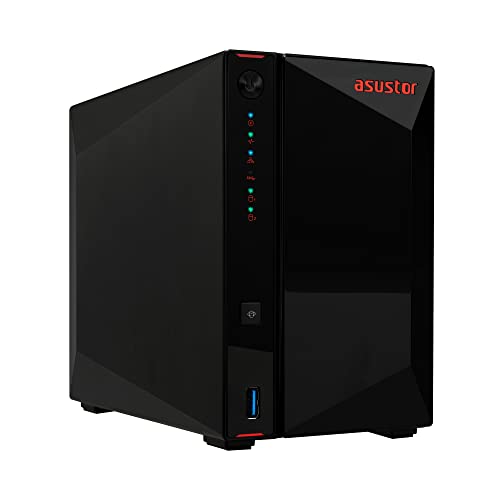
Asustor AS5402T, 2-Bay NAS
Buyers who want the most detailed spec sheet and NVMe caching to speed up backup and general performance
Our take Check price for Asustor AS5402T, 2-Bay NAS (opens in a new tab)

Best Entry 4-Bay
Synology DS425+ Private Cloud Media Server
Buyers who want to dedicate separate drive bays to Time Machine backup versus other storage needs
Our take Check price for Synology DS425+ Private Cloud Media Server (opens in a new tab)

Best CPU in This Tier
UGREEN NAS DXP4800 Plus 4-Bay
Buyers who want the strongest processor here for running multiple simultaneous NAS tasks at once
Our take Check price for UGREEN NAS DXP4800 Plus 4-Bay (opens in a new tab)

Best Premium Pick
Synology 4-Bay DiskStation DS925+
Buyers who want Synology's newest 4-bay flagship and the longest expected support window
Our take Check price for Synology 4-Bay DiskStation DS925+ (opens in a new tab)
| Pick | Best for | Key spec | Price |
|---|---|---|---|
| Buyers who want hardware transcoding for media streaming alongside DSM's polished Time Machine flow | Intel CPU, hardware transcoding | Check price for Synology DS225+ Private Cloud Media Server (opens in a new tab) |
| Content creators who need active project storage alongside standard Time Machine backup | 2-bay design for active project storage | Check price for UGREEN NAS DXP2800 2-Bay (opens in a new tab) |
| Buyers who want the most detailed spec sheet and NVMe caching to speed up backup and general performance | Intel quad-core 2.0GHz, 4GB DDR4 RAM | Check price for Asustor AS5402T, 2-Bay NAS (opens in a new tab) |
| Buyers who want to dedicate separate drive bays to Time Machine backup versus other storage needs | 4-bay diskless design | Check price for Synology DS425+ Private Cloud Media Server (opens in a new tab) |
| Buyers who want the strongest processor here for running multiple simultaneous NAS tasks at once | Intel Pentium Gold 8505, 5-core CPU | Check price for UGREEN NAS DXP4800 Plus 4-Bay (opens in a new tab) |
| Buyers who want Synology's newest 4-bay flagship and the longest expected support window | 4-bay diskless, current Synology flagship | Check price for Synology 4-Bay DiskStation DS925+ (opens in a new tab) |
Our Picks
Best Overall1 of 6
Synology DS225+ Private Cloud Media Server on Amazon (opens in a new tab)
Synology names an Intel CPU directly in this listing specifically for hardware video transcoding, useful if you're also using this NAS to stream media around your home alongside running Time Machine backups in the background.
Best for
- Buyers who want hardware transcoding for media streaming alongside DSM's polished Time Machine flow
Why we like it
Against the cheaper DS223 in the lower price tier, the DS225+ steps up to that transcoding-capable Intel chip, a real functional upgrade if streaming media matters to you, while staying in the same 2-bay form factor and DSM software experience.
Best for buyers who want Synology's polished Time Machine setup flow plus real hardware transcoding for home media streaming, without stepping up to a 4-bay unit.
Key dimensions & specs
- Intel CPU, hardware transcoding
- 2-bay diskless design
- Native DSM Time Machine setup flow
Pros
- Named Intel CPU for hardware transcoding
- DSM's polished Time Machine setup wizard
- Established, well-documented software ecosystem
Cons
- 2-bay only, no 4-bay redundancy option at this price
- Costs more than the entry Synology DS223
Best for Content Creators2 of 6
UGREEN NAS DXP2800 2-Bay on Amazon (opens in a new tab)
UGREEN specifically positions this listing toward content creators and enthusiasts rather than general home backup, at nearly the same price as the Synology DS225+ above, targeting buyers who need fast storage for active video editing projects on top of standard Time Machine backup duty.
Best for
- Content creators who need active project storage alongside standard Time Machine backup
Why we like it
Against the Synology pick, UGREEN's own NAS OS is newer and less established, the same tradeoff noted in the cheaper tier, but the hardware itself is positioned specifically for the heavier read/write demands of active creative work rather than just backup storage.
Best for content creators specifically who need a 2-bay NAS that can handle active video editing project storage in addition to Time Machine backup duty.
Key dimensions & specs
- 2-bay design for active project storage
- UGREEN's own NAS OS
- Positioned for content creator workflows
Pros
- Built with active creative workflows in mind
- Similar price to the Synology DS225+
- Supports standard Time Machine SMB backup
Cons
- Newer NAS OS with less established track record
- No stated CPU model in this listing
Best Specs for the Price3 of 6
Asustor AS5402T, 2-Bay NAS on Amazon (opens in a new tab)
2 NVMe SSD slots for read/write caching, a combination none of the other 2-bay picks here match.
Best for
- Buyers who want the most detailed spec sheet and NVMe caching to speed up backup and general performance
Why we like it
2 NVMe cache slots are the standout difference, letting you dramatically speed up random read/write performance for both Time Machine's incremental backups and any other workload without touching the main hard drive bays.
Best for buyers who want the most detailed, comparable spec sheet at this price and specifically value NVMe caching to speed up both Time Machine and general NAS performance.
Key dimensions & specs
- Intel quad-core 2.0GHz, 4GB DDR4 RAM
- 4x M.2 NVMe SSD cache slots
- Dual 2.5GbE network ports
Pros
- Most detailed, named spec sheet in this comparison
- 4 M.2 NVMe slots for performance caching
- Dual 2.5GbE ports for faster network transfer
Cons
- Priciest 2-bay pick in this comparison
- NVMe cache drives are a separate additional purchase
Best Entry 4-Bay4 of 6
Synology DS425+ Private Cloud Media Server on Amazon (opens in a new tab)
This is the entry point into 4-bay storage in this comparison, doubling the drive bays of every pick above it while keeping Synology's same polished DSM software and native Time Machine setup flow.
Best for
- Buyers who want to dedicate separate drive bays to Time Machine backup versus other storage needs
Why we like it
Against the 2-bay Asustor pick, you lose the dedicated NVMe cache slots but gain two additional drive bays, meaning you can dedicate two drives specifically to Time Machine's RAID 1 mirror and use the other two for a completely separate storage pool.
Best for buyers who want to separate Time Machine backup storage from other NAS uses entirely, using dedicated drive bays for each rather than sharing a single 2-bay pool.
Key dimensions & specs
- 4-bay diskless design
- Native DSM Time Machine setup flow
- Established, well-documented DSM software
Pros
- 4 bays let you separate backup storage from other uses
- DSM's polished Time Machine setup wizard
- Established software ecosystem with broad app support
Cons
- No stated NVMe cache slots like the Asustor pick
- No specific CPU model named in this listing
Best CPU in This Tier5 of 6
UGREEN NAS DXP4800 Plus 4-Bay on Amazon (opens in a new tab)
UGREEN names a specific, powerful CPU here, an Intel Pentium Gold 8505 with 5 cores, a notably stronger processor than any other pick in this comparison states directly, useful if you plan to run multiple simultaneous workloads (Time Machine backup, media transcoding, and file sharing) at once.
Best for
- Buyers who want the strongest processor here for running multiple simultaneous NAS tasks at once
Why we like it
Against the Synology DS425+ at a similar price, UGREEN trades DSM's established software polish for that stronger named CPU, a real tradeoff between raw processing power and software ecosystem maturity.
Best for buyers who specifically want the strongest named CPU in this comparison for running multiple simultaneous NAS workloads, and who don't mind UGREEN's newer software platform.
Key dimensions & specs
- Intel Pentium Gold 8505, 5-core CPU
- 4-bay design
- UGREEN's own NAS OS
Pros
- Strongest named CPU in this comparison
- 4 bays for separating backup and other storage
- Handles multiple simultaneous workloads well
Cons
- Newer NAS OS with less established track record
- Costs more than Synology's similarly-specced 4-bay pick
Best Premium Pick6 of 6
Synology 4-Bay DiskStation DS925+ on Amazon (opens in a new tab)
At exactly the top of this price tier, the DS925+ is Synology's current flagship 4-bay consumer NAS, carrying the same DSM software and native Time Machine integration as the cheaper DS425+ but positioned as the more current, longer-support-window model in Synology's lineup.
Best for
- Buyers who want Synology's newest 4-bay flagship and the longest expected support window
Why we like it
Against the UGREEN DXP4800 Plus, you're paying a premium specifically for Synology's brand, software polish, and typically longer official support lifecycle rather than a dramatically different core spec.
Best for buyers who specifically want Synology's newest 4-bay flagship and the longest expected official support window in this comparison, and who value that over UGREEN's stronger named CPU.
Key dimensions & specs
- 4-bay diskless, current Synology flagship
- Native DSM Time Machine setup flow
- Longest expected official support lifecycle
Pros
- Synology's current 4-bay flagship model
- DSM's polished, well-documented Time Machine setup
- Typically longer official support window than older models
Cons
- Priciest pick in this comparison
- No more detailed named CPU spec than the cheaper DS425+
How We Chose These NAS for Mac Time Machine Backup Under $700
Each pick was assessed across 5 criteria weighted for real-world use.
- We noted which listings name a specific CPU model versus a general description, since a named CPU is directly comparable and matters more at this budget where multiple simultaneous workloads are common.
- Bay count and storage pool flexibility
- We distinguished 2-bay from 4-bay designs, since a 4-bay unit lets you dedicate separate drives to Time Machine backup versus other storage needs rather than sharing one pool.
- 2 NVMe slots for read/write caching, a real performance feature that speeds up both Time Machine's incremental backups and general NAS use.
- 5GbE port configurations, since faster networking directly reduces the time a large Time Machine backup or restore takes.
- Every pick had to be in stock and priced at or under $700 on the date this guide was checked; units that only hit this tier during a temporary sale were excluded.
What to Look for in an NA for Mac Time Machine Backup Under $700
Key buying criteria so you get the right fit the first time.
Decide if you need 4 bays or if 2 bays covers your actual use case
A 2-bay NAS at this budget generally dedicates both drives to a single RAID 1 mirror for Time Machine redundancy, meaning all your storage capacity serves one purpose. A 4-bay NAS lets you split storage into two separate pools, for example, two drives mirrored specifically for Time Machine and two more drives configured differently for general file storage or media serving, keeping backup storage logically and physically separate from everything else. If Time Machine backup is your only use case for this device, a 2-bay unit is sufficient and cheaper; if you also want to use the same NAS for other storage needs, the extra bays on a 4-bay unit are worth the higher price.
2 NVMe cache slots if performance matters beyond backup
2 NVMe slots specifically for SSD caching, distinct from the main hard drive bays, which can dramatically speed up random read/write operations like Time Machine's frequent small incremental backups or general file browsing performance. This caching only helps if you actually install compatible NVMe drives in those slots, an additional purchase beyond the NAS unit itself, and it isn't necessary if you're only doing occasional Time Machine backups with no other demanding NAS workload. Check whether a listing states dedicated NVMe cache slots as a spec, and factor in the cost of actual NVMe drives if you want to use that feature.
Compare named CPU models directly rather than assuming price reflects performance
At this higher price tier, most listings do name a specific CPU model, giving you a real, comparable spec rather than a vague performance claim, and CPU strength matters more here than at the entry-level tier since buyers at this budget are more likely to run multiple simultaneous tasks: Time Machine backup, media transcoding, and general file access all at once. A stronger named CPU (more cores, higher clock speed) handles that kind of concurrent load more smoothly than a weaker one, even if both units cost a similar amount. Look up the specific CPU model named in the listing if you want to compare real-world benchmark performance rather than assuming a higher price automatically means a stronger processor.
Weigh network port speed against your actual backup and restore frequency
5GbE ports, found on some picks in this comparison, can theoretically deliver combined throughput well beyond a single standard Gigabit Ethernet port, particularly useful for the initial full Time Machine backup or a full restore after a Mac replacement, both of which move large amounts of data at once. Day-to-day incremental Time Machine backups after that first full backup are typically much smaller and less network-intensive, meaning the network speed advantage matters most during those two specific, less frequent events rather than daily use. If you rarely do full restores and your daily incremental backups are small, standard Gigabit Ethernet is likely sufficient; if you handle large restores or migrations more often, faster networking pays off more.
Weigh an established software ecosystem against a newer platform's stronger named hardware
Synology's DSM remains the most refined and extensively documented NAS operating system among the picks in this comparison, with a Time Machine setup flow and broader app ecosystem built up over many years, while newer platforms like UGREEN's own OS sometimes pack stronger named CPU specs into a similarly priced unit but with a shorter software track record. This is a genuine tradeoff rather than one platform being objectively better: DSM's maturity reduces the chance of hitting an undocumented setup issue, while a newer platform's stronger hardware can better handle demanding simultaneous workloads. Decide based on whether you value setup simplicity and documentation more, or raw processing power for concurrent tasks more, since both are legitimate priorities at this budget.
How to Choose an NA for Mac Time Machine Backup Under $700
| Hardware transcoding for home media streaming | Synology DS225+ Private Cloud Media Server |
|---|---|
| The most detailed spec sheet plus NVMe caching | |
| 4 bays to separate backup from other storage | Synology DS425+ Private Cloud Media Server |
| The strongest named CPU for multiple workloads | UGREEN NAS DXP4800 Plus 4-Bay |
| Synology DS225+, UGREEN DXP2800, or Asustor AS5402T | |
| Synology DS425+, UGREEN DXP4800 Plus, or Synology DS925+ |
2-Bay vs 4-Bay for Time Machine Specifically
- Both bays typically go into one RAID 1 mirror for Time Machine redundancy, leaving no separate pool for other storage needs on the same unit.
- 4-Bay (DS425+, DXP4800 Plus, DS925+)
- Lets you dedicate two bays to a Time Machine RAID 1 mirror while using the remaining two bays as a completely separate storage pool for other data.
If Time Machine backup is your only real use case, a 2-bay unit is sufficient; if you also want general file storage or media serving on the same NAS, a 4-bay design keeps that storage separate.
By CPU and Workload Needs
| Just Time Machine backup, occasional file access | Any pick in this comparison handles this comfortably |
|---|---|
| Time Machine plus home media transcoding | Synology DS225+ Private Cloud Media Server |
| Time Machine plus multiple simultaneous heavy tasks | UGREEN NAS DXP4800 Plus (strongest named CPU) |
For Active Video Editing Workflows Specifically
- NVMe cache slots and fast network ports, since active video editing involves much more frequent read/write access than passive Time Machine backup alone.
- 5GbE ports is the pick here specifically built for that kind of active workload.
- 99) both deliver real upgrades over the 2-bay picks.
- 99) covers both well without paying for 4-bay capacity you may not need.
Frequently Asked Questions
Is a 4-bay NAS worth the extra cost over a 2-bay unit just for Time Machine backup?
Only if you want to use the same NAS for storage needs beyond Time Machine. A 2-bay unit configured as a RAID 1 mirror handles Time Machine backup redundancy fine on its own. A 4-bay unit lets you dedicate separate drives to backup versus other storage, which matters if you plan to use the NAS for more than just backup duty.
Do I need to buy NVMe cache drives separately if a NAS has NVMe slots?
The NVMe slots themselves are a hardware feature built into the NAS, but compatible NVMe SSDs to actually populate those slots are sold separately in almost every case. Factor that additional cost into your budget if you specifically want to use a NAS's caching feature.
Will a stronger CPU actually make my Time Machine backups faster?
It can help, particularly with the very first full backup or if you're running other tasks (like media transcoding) on the NAS simultaneously. For routine small incremental backups after that first one, network speed and drive speed generally matter more than raw CPU power.
5GbE ports over one with a single port?
5GbE connection if your network setup and switch support it, most beneficial during large full backups or restores. 5GbE or even standard Gigabit port is usually sufficient.
Is UGREEN's NAS software as reliable as Synology's DSM for Time Machine backup?
UGREEN's own NAS OS is newer to market than Synology's long-established DSM, so it has a shorter track record and less accumulated community documentation, though the core Time Machine SMB functionality works the same way across both platforms. If setup simplicity and extensive documentation matter most to you, DSM's maturity is a real advantage.
Can I upgrade from a 2-bay NAS to a 4-bay one later and keep my Time Machine backup history?
Not directly by simply moving drives, since migrating between different NAS models generally requires either a supported migration process (check the specific manufacturer's documentation) or starting a fresh Time Machine backup on the new unit. If you're unsure whether you'll want to expand later, it's often simpler to choose the bay count you expect to need from the start.
Bottom Line
Best overall: Synology DS225+ Private Cloud Media Server — best overall pick in this roundup. See the full verdicts above for every pick, with pros, cons and who each one suits.
Browse all nas for mac time machine backup under $700 on Amazon — Prime-eligible options with current pricing.