
Buying Guide
The Best Vertical Mice for Mac: Picks and Trade-offs
We looked at 8 vertical mice for mac side by side, with the trade-offs that separate them and who each one suits.
By Jamie Cole, Lead Product Researcher
9 min read8 products evaluated
We may earn a commission from purchases made through links in this guide. Learn more.
Not every vertical mouse offers seamless macOS software support out of the box. Many require manually mapping side buttons through System Settings rather than a dedicated Mac app handling it automatically, and natural scrolling direction sometimes needs adjusting separately from the mouse's own settings. We checked what each pick's macOS support actually looks like rather than assuming universal, effortless compatibility just because a mouse connects over standard Bluetooth or USB.
It's also worth setting realistic expectations if you're switching from Apple's own trackpad or Magic Mouse: you lose certain gesture-based workflows like swipe-to-switch-desktops or pinch-to-zoom that Apple's own input devices support natively. A vertical mouse trades those gestures for a different wrist angle, which is a reasonable trade for many buyers but not a strict upgrade in every dimension. Also confirm driver compatibility against your current macOS version rather than relying on older compatibility claims in a listing that may not reflect the latest OS.
Quick Picks
Our 8 recommendations at a glance. Tap a pick for the full verdict.

Best Overall Mac Compatibility
Logitech MX Vertical Wireless Mouse Ergonomic Design
Mac users who want the most established software support for button remapping and are comfortable with basic setup steps.
Our take Check price for Logitech MX Vertical Wireless Mouse Ergonomic Design (opens in a new tab)
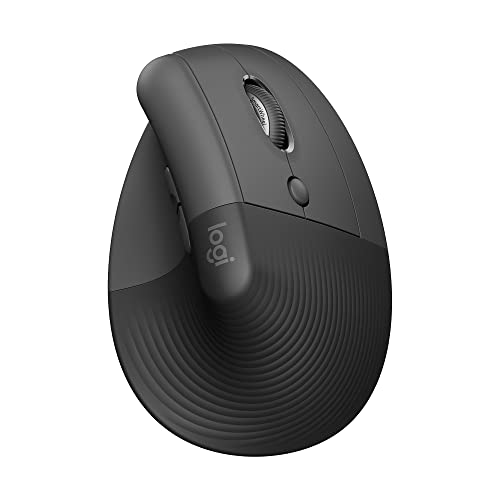
Best Compact Mac Pick
Logitech Lift Vertical Ergonomic Wireless Mouse
Mac users with smaller to average hands who want established software support in a more compact body.
Our take Check price for Logitech Lift Vertical Ergonomic Wireless Mouse (opens in a new tab)

Best Budget Mac-Compatible Pick
ProtoArc EM11 NL Wireless Ergonomic Vertical Mouse, Rechargeable
Budget-conscious Mac users who mainly need core pointing and clicking without advanced button customization.
Our take Check price for ProtoArc EM11 NL Wireless Ergonomic Vertical Mouse, Rechargeable (opens in a new tab)

Best Value Mac Pick
Lekvey Ergonomic Mouse, Rechargeable Vertical Wireless Mouse
Budget-conscious Mac users who want basic wireless functionality without needing deep customization software.
Our take Check price for Lekvey Ergonomic Mouse, Rechargeable Vertical Wireless Mouse (opens in a new tab)

Best Ultra-Budget Mac Pick
Anker 2.4G Wireless Ergonomic Mouse, Right Hand Vertical Mouse
Budget-conscious Mac users who want the lowest-cost way to try a vertical mouse.
Our take Check price for Anker 2.4G Wireless Ergonomic Mouse, Right Hand Vertical Mouse (opens in a new tab)

Best Pick for Extra Buttons on Mac
Razer Pro Click V2 Vertical Wireless Mouse, 6 Button Ergonomic Design
Mac users who want more programmable buttons and are comfortable with a smaller review sample.
Our take Check price for Razer Pro Click V2 Vertical Wireless Mouse, 6 Button Ergonomic Design (opens in a new tab)

Best Small-Hand Mac Pick
Luhaso Ergonomic Vertical Wireless Mouse, 57 degree, Small/Medium Hands
Mac users with small to medium hands who want a low-cost pick for core pointing and clicking.
Our take Check price for Luhaso Ergonomic Vertical Wireless Mouse, 57 degree, Small/Medium Hands (opens in a new tab)

Best Wired Mac Pick
TECKNET Wired Mouse, Comfortable Ergonomic Mouse with 6400 DPI
Mac users who want a simple wired connection without any Bluetooth pairing steps.
Our take Check price for TECKNET Wired Mouse, Comfortable Ergonomic Mouse with 6400 DPI (opens in a new tab)
Our Picks
Best Overall Mac Compatibility1 of 8
Logitech MX Vertical Wireless Mouse Ergonomic Design on Amazon (opens in a new tab)
Logitech's companion software has genuine macOS support for remapping buttons, though some buyers still report needing to adjust natural scrolling separately in System Settings rather than it being handled entirely automatically.
Best for
- Mac users who want the most established software support for button remapping and are comfortable with basic setup steps.
Why we like it
Confirm current driver compatibility with your specific macOS version before buying, since software support can lag slightly behind the very latest OS release.
Dual connectivity works reliably with Mac Bluetooth stacks. That said, natural scrolling may need separate manual adjustment.
Key dimensions & specs
- Dual 2.4GHz and Bluetooth
- Companion macOS software for button mapping
- Rechargeable battery
- Premium build
Pros
- Companion software supports macOS button remapping
- Dual connectivity works reliably with Mac Bluetooth stacks
- Rechargeable battery
Cons
- Natural scrolling may need separate manual adjustment
- Premium price
- Loses Magic Mouse-style gesture support
Best Compact Mac Pick2 of 8
Logitech Lift Vertical Ergonomic Wireless Mouse on Amazon (opens in a new tab)
Shares the same brand's macOS companion software approach in a more compact body, useful for Mac users with smaller to average hands.
Best for
- Mac users with smaller to average hands who want established software support in a more compact body.
Why we like it
As with its larger sibling, expect to manually configure natural scrolling and confirm current driver support against your macOS version rather than assuming automatic, effortless compatibility.
Key dimensions & specs
- Dual 2.4GHz and Bluetooth
- Companion macOS software
- Compact body
- Rechargeable battery
Pros
- Same established companion software approach in a smaller body
- Dual connectivity for reliable Mac pairing
- Rechargeable battery
Cons
- Manual scrolling adjustment likely needed
- Mid-to-premium price
- Loses Magic Mouse-style gesture support
Best Budget Mac-Compatible Pick3 of 8
ProtoArc EM11 NL Wireless Ergonomic Vertical Mouse, Rechargeable on Amazon (opens in a new tab)
A budget wireless option that generally pairs fine with a Mac's Bluetooth stack for basic pointing and clicking, though it does not include Mac-specific companion software for advanced button mapping.
Best for
- Budget-conscious Mac users who mainly need core pointing and clicking without advanced button customization.
Why we like it
Expect to map any extra buttons manually through System Settings rather than a dedicated app, and confirm natural scrolling behavior after pairing.
Key dimensions & specs
- Bluetooth and wireless dongle options
- No dedicated macOS companion app
- Rechargeable built-in battery
- Budget price point
Pros
- Works for basic Mac pairing and pointing at a low price
- Rechargeable battery
- Simple setup for core functions
Cons
- No dedicated macOS software for advanced button mapping
- Manual configuration needed for extra buttons and scrolling
- Fewer Mac-specific compatibility confirmations than premium picks
Best Value Mac Pick4 of 8
Lekvey Ergonomic Mouse, Rechargeable Vertical Wireless Mouse on Amazon (opens in a new tab)
Set expectations that this is a core-function pick rather than one with deep macOS-specific customization, and manually verify scroll direction and button behavior after pairing.
Best for
- Budget-conscious Mac users who want basic wireless functionality without needing deep customization software.
Why we like it
The standout detail is that rechargeable battery. Balancing that out, no dedicated macOS software for advanced customization.
Key dimensions & specs
- 2.4GHz wireless receiver
- No dedicated macOS companion app
- Rechargeable built-in battery
- Budget price point
Pros
- Low price for basic Mac compatibility
- Rechargeable battery
- Simple pairing for core pointing functions
Cons
- No dedicated macOS software for advanced customization
- No Bluetooth option, dongle only
- Manual scroll and button configuration needed
Best Ultra-Budget Mac Pick5 of 8
Anker 2.4G Wireless Ergonomic Mouse, Right Hand Vertical Mouse on Amazon (opens in a new tab)
4GHz dongle pairs reliably with a Mac's USB-A port for basic pointing and clicking, at the lowest price in this guide, though it has no dedicated macOS software for advanced button mapping.
Best for
- Budget-conscious Mac users who want the lowest-cost way to try a vertical mouse.
Why we like it
Expect to configure natural scrolling and any extra buttons manually, and note this is right-hand specific with no left-handed version available.
Key dimensions & specs
- 2.4GHz USB-A dongle
- No dedicated macOS companion app
- Right-hand specific design
- Budget price point
Pros
- Lowest price in this guide for Mac compatibility
- Simple plug-and-play pairing
- Reliable core pointing and clicking
Cons
- No dedicated macOS software for advanced customization
- Right-hand only
- AA batteries add weight versus rechargeable picks
Best Pick for Extra Buttons on Mac6 of 8
Razer Pro Click V2 Vertical Wireless Mouse, 6 Button Ergonomic Design on Amazon (opens in a new tab)
A 6-button layout gives more Mac shortcut remapping options than most picks in this guide, from a brand with cross-platform software support, though macOS-specific driver behavior should be verified on the current listing.
Best for
- Mac users who want more programmable buttons and are comfortable with a smaller review sample.
Why we like it
0-star rating are worth weighing against the premium price and extra button count.
Both are worth keeping in mind before deciding.
Key dimensions & specs
- 6 programmable buttons
- Wireless connectivity
- Rechargeable battery
- Premium price point
Pros
- More programmable buttons for Mac shortcuts
- Rechargeable battery
- Cross-platform software support
- Ergonomic vertical body
Cons
- Premium price relative to its rating
- macOS-specific driver behavior not independently confirmed
Best Small-Hand Mac Pick7 of 8
Luhaso Ergonomic Vertical Wireless Mouse, 57 degree, Small/Medium Hands on Amazon (opens in a new tab)
Explicitly sized for small to medium hands with a very strong review rating, though on a small sample size, and it pairs with a Mac's Bluetooth or dongle stack for basic functions without dedicated macOS software.
Best for
- Mac users with small to medium hands who want a low-cost pick for core pointing and clicking.
Why we like it
Confirm the specific wireless method and current driver behavior on the listing before buying, since this wasn't independently verified for advanced macOS features.
Key dimensions & specs
- Explicit small/medium hand sizing
- 57-degree tilt angle
- No dedicated macOS companion app
- Budget price point
Pros
- sized for small to medium hands
- Very strong review rating
- low-cost price
- Basic Mac pairing for core functions
Cons
- Small review sample size, verify current feedback
- No dedicated macOS software for advanced mapping
- Less established brand track record than premium picks
Best Wired Mac Pick8 of 8
TECKNET Wired Mouse, Comfortable Ergonomic Mouse with 6400 DPI on Amazon (opens in a new tab)
A wired USB connection plugs directly into a Mac without any pairing steps at all, avoiding Bluetooth reconnection quirks entirely, with adjustable DPI included at a low price.
Best for
- Mac users who want a simple wired connection without any Bluetooth pairing steps.
Why we like it
It has no dedicated macOS companion software, so expect to configure natural scrolling and any extra buttons manually through System Settings.
That said, no dedicated macOS software for advanced customization.
Key dimensions & specs
- Wired USB connection
- 6400 DPI adjustable sensor
- No dedicated macOS companion app
- Budget price point
Pros
- No pairing steps, plugs directly into a Mac's USB port
- Adjustable DPI sensor
- Avoids Bluetooth reconnection quirks entirely
- Strong review rating for the price
Cons
- No dedicated macOS software for advanced customization
- No wireless option
- Manual scroll and button configuration needed
How We Chose These Vertical Mice for Mac
Each pick was assessed across 4 criteria weighted for real-world use.
- Actual macOS software and driver support verified per product
- We checked whether each pick has dedicated macOS companion software versus requiring manual button mapping through System Settings.
- Natural scrolling configuration checked, not assumed automatic
- We noted where natural scrolling likely needs manual adjustment after pairing rather than assuming it's configured automatically.
- Realistic comparison to Magic Mouse gestures included
- We set honest expectations that switching from a Mac trackpad or Magic Mouse means losing certain gesture-based workflows.
- Current macOS version compatibility flagged as something to verify
- We recommended confirming driver compatibility against your current macOS version rather than trusting an older compatibility claim in the listing.
What to Look for in a Vertical Mouse for Mac
Key buying criteria so you get the right fit the first time.
Match the vertical angle to your actual hand size and grip
A vertical mouse's tilt angle, usually somewhere between 45 and 90 degrees from flat, is what actually reduces forearm rotation strain, but the ideal angle isn't the same for every hand, a mouse shaped for a larger hand can feel awkwardly steep and unstable in a smaller hand, and vice versa.
This matters because the entire ergonomic benefit depends on the mouse fitting your hand well enough to hold a natural, relaxed grip, a mismatched size can actually introduce new strain from over-gripping to keep the mouse stable.
Check the listing for hand-size guidance (often given in inches from wrist to middle fingertip) rather than assuming a single design fits all hand sizes equally well.
Consider DPI range and sensor quality for your actual desk surface and use
DPI (dots per inch) determines cursor sensitivity, and while a wide adjustable DPI range sounds like a universal benefit, what actually matters is whether the sensor tracks accurately and consistently at the DPI level you'll realistically use, a mouse with an impressively high max DPI but a mediocre sensor can still feel imprecise in daily use.
This matters more for precision work like design or spreadsheet navigation than for basic web browsing, where sensor quality differences are less noticeable.
Check reviews specifically for mentions of tracking accuracy and cursor jitter, not just the advertised maximum DPI number, since the two don't always correlate.
Weigh wireless connectivity type against your actual setup and battery expectations
A vertical mouse connects via Bluetooth, a proprietary RF USB dongle, or a wired cable, and each comes with real tradeoffs, Bluetooth avoids using a USB port but can have a small input lag some users notice, an RF dongle is generally more responsive but takes up a port and is easy to lose while traveling, and wired eliminates battery concerns entirely but limits desk placement flexibility.
This matters directly if you're already short on USB ports, travel frequently with the mouse, or care about minimal input latency for precise work.
Check the specific connectivity type and, for wireless options, the claimed battery life under real use, not just standby time, before assuming any wireless mouse fits your setup equally well.
Check button placement and count against how you actually use a mouse day to day
Extra programmable buttons for back/forward navigation or DPI switching are only useful if they're placed where your thumb naturally rests during normal use, a button that requires shifting your grip to reach defeats its own ergonomic purpose.
This matters more for anyone doing heavy web browsing or navigation-heavy work where back/forward buttons get used constantly, less for someone doing simple pointing and clicking.
Check reviews specifically for mentions of thumb button reachability and accidental misclicks, not just the total button count listed in the specs.
Factor in adjustment period and whether the design suits your actual daily tasks
Switching to a vertical mouse from a standard mouse involves a genuine adjustment period, typically one to two weeks, during which precision and speed can feel worse before the new grip becomes natural, this is a normal part of the transition, not a sign the mouse is a bad fit.
This matters most for anyone doing precision-dependent work like graphic design or gaming, where a temporary drop in accuracy during the adjustment period has a real short-term cost worth planning around.
Check reviews for mentions of how long the adjustment period took for reviewers with a similar use case to yours, and consider trying the new grip during a lower-stakes work period rather than a deadline crunch.
How to Choose a Vertical Mouse for Mac
By Rating Confidence: Highest Rated vs Most Reviewed
| Luhaso Ergonomic Vertical Wireless Mouse | |
| Logitech MX Vertical Wireless Mouse Ergonomic Design | |
| Razer Pro Click V2 Vertical Wireless Mouse |
- No recurring battery purchases, usually a USB-C charge cable does the job in downtime. In this comparison: Logitech MX Vertical Wireless Mouse Ergonomic Design, Logitech Lift Vertical Ergonomic Wireless Mouse, ProtoArc EM11 NL Wireless Ergonomic Vertical Mouse, Lekvey Ergonomic Mouse, Razer Pro Click V2 Vertical Wireless Mouse.
- Simple to swap anywhere without carrying a charge cable, at the cost of ongoing battery purchases. 4G Wireless Ergonomic Mouse, Luhaso Ergonomic Vertical Wireless Mouse, TECKNET Wired Mouse.
Default to rechargeable unless you specifically want to avoid ever plugging the mouse in to charge.
For Wrist or Forearm Strain Specifically
- A pronounced vertical angle matched to your hand size, with reviews specifically mentioning strain relief after the adjustment period.
- You use a mouse for many hours daily and strain relief or sensor precision is the priority, where Razer Pro Click V2 Vertical Wireless Mouse's higher price buys real headroom over the cheaper picks.
- You only need occasional use, where Logitech MX Vertical Wireless Mouse Ergonomic Design covers the same job at a lower price.
Frequently Asked Questions
Do vertical mice work seamlessly with a Mac out of the box?
Basic pointing and clicking generally work, but advanced button mapping and natural scrolling sometimes require manual configuration or a companion app, not automatic setup.
Will I lose Magic Mouse gestures by switching to a vertical mouse?
Yes, gestures like swipe-to-switch-desktops and pinch-to-zoom are specific to Apple's own input devices and aren't replicated by third-party vertical mice.
Do I need special software to remap buttons on a Mac?
Some vertical mice include a companion macOS app for this, while others require manually mapping buttons through System Settings instead.
Should I check macOS version compatibility before buying?
Yes, confirm the listing's compatibility claim reflects your current macOS version, since driver support can lag behind the very latest OS release.
Bottom Line
Best overall: Logitech MX Vertical Wireless Mouse Ergonomic Design — best overall mac compatibility pick in this roundup. See the full verdicts above for every pick, with pros, cons and who each one suits.
Browse all vertical mice for mac on Amazon — Prime-eligible options with current pricing.