
Buying Guide
The Best USB KVM Switches for a Better Desk Setup
We looked at 5 USB KVM switches side by side, with the trade-offs that separate them and who each one suits.
By Jamie Cole, Lead Product Researcher
9 min read5 products evaluated
We may earn a commission from purchases made through links in this guide. Learn more.
0 ports on a switch make a real, measurable speed difference for external drives and other high-bandwidth peripherals, not just keyboard and mouse, worth checking the actual USB standard on each port rather than assuming any 'USB switch' handles fast peripherals equally well.
A dedicated USB switch (without video switching) is a different product from a full KVM switch, worth confirming exactly what you need, since a simple USB-only switch is cheaper but won't switch your monitor's video source.
Quick Picks
Our 5 recommendations at a glance. Tap a pick for the full verdict.

Best USB KVM Switch Overall
UGREEN HDMI KVM Switch 2 Monitors 2 Computers 4K@60Hz, with 4 USB 3.0 Ports
0 speeds alongside full dual-monitor KVM switching
Our take Check price for UGREEN HDMI KVM Switch 2 Monitors 2 Computers 4K@60Hz, with 4 USB 3.0 Ports (opens in a new tab)
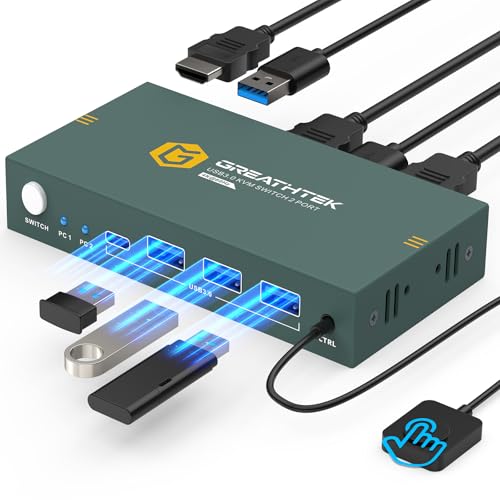
Best Value USB 3.0 KVM Pick
USB3.0 KVM Switch 2 Port HDMI, 4K@60Hz KVM Switch 1 Monitors 2 Computers with 3 USB3.0 Ports
0 speeds with single-monitor KVM switching
Our take Check price for USB3.0 KVM Switch 2 Port HDMI, 4K@60Hz KVM Switch 1 Monitors 2 Computers with 3 USB3.0 Ports (opens in a new tab)

Best USB KVM Pick for Multiple Computers
USB3.0 KVM Switch HDMI 4K@60Hz for 4 Computers Share 1 Monitor, KVM Switch 4 Port with 3 USB
Buyers with more than two computers wanting genuine USB 3.0 peripheral switching
Our take Check price for USB3.0 KVM Switch HDMI 4K@60Hz for 4 Computers Share 1 Monitor, KVM Switch 4 Port with 3 USB (opens in a new tab)
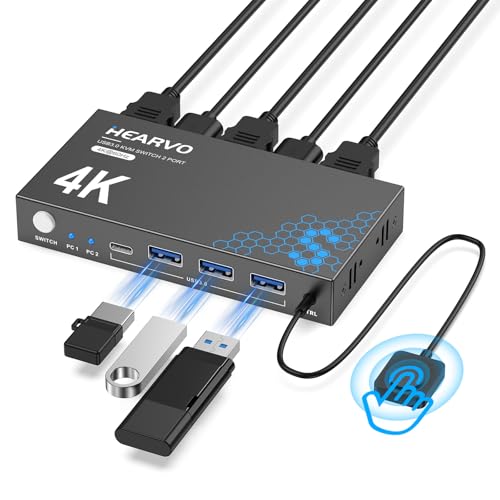
Best Ultra-Budget USB 3.0 KVM Pick
Hearvo USB 3.0 HDMI KVM Switch for 2 Computers 1 Monitor, 4K@60Hz, S7232H
0 speeds at the lowest possible price
Our take Check price for Hearvo USB 3.0 HDMI KVM Switch for 2 Computers 1 Monitor, 4K@60Hz, S7232H (opens in a new tab)

0 Pick for Two Computers
TIGKTING USB 3.0 HDMI KVM Switch 1 Monitors 2 Computers 4K60Hz KVM Switches 2 Ports for 2 PC 1 Monitor
Buyers with a straightforward two-computer setup wanting genuine USB 3.0 speeds and simplicity
Our take Check price for TIGKTING USB 3.0 HDMI KVM Switch 1 Monitors 2 Computers 4K60Hz KVM Switches 2 Ports for 2 PC 1 Monitor (opens in a new tab)
Our Picks
Best USB KVM Switch Overall1 of 5
UGREEN HDMI KVM Switch 2 Monitors 2 Computers 4K@60Hz, with 4 USB 3.0 Ports on Amazon (opens in a new tab)
0 speeds, not just keyboard and mouse.
Best for
- 0 speeds alongside full dual-monitor KVM switching
Why we like it
0 KVM Switch 2 Port HDMI for one main reason. 0 ports for genuine fast peripheral speeds. 0 KVM Switch 2 Port HDMI, which is worth weighing if cost is your deciding factor between the two.
On the other side, Higher price than a single-monitor switch.
Key dimensions & specs
- 4 USB 3.0 ports
- 2 monitors, 2 computers video switching
- 4K@60Hz resolution support
- HDMI connectivity
Pros
- Explicit 4 USB 3.0 ports for genuine fast peripheral speeds
- Full KVM functionality including dual-monitor video switching
- 4K@60Hz resolution covers typical monitor needs
- Good value for the complete feature set
Cons
- Higher price than a simpler USB-only switch if you don't need video switching
- Verify EDID emulation behavior through current reviews
- Higher price than a single-monitor switch
Best Value USB 3.0 KVM Pick2 of 5
USB3.0 KVM Switch 2 Port HDMI, 4K@60Hz KVM Switch 1 Monitors 2 Computers with 3 USB3.0 Ports on Amazon (opens in a new tab)
0 ports, appropriate for buyers wanting genuine fast peripheral speeds without paying for dual-monitor video switching they don't need.
Best for
- 0 speeds with single-monitor KVM switching
Why we like it
On the other side, Fewer USB ports than the dual-monitor alternative.
Key dimensions & specs
- 3 USB 3.0 ports
- 1 monitor, 2 computers video switching
- 4K@60Hz resolution support
- HDMI connectivity
Pros
- low-cost price for genuine USB 3.0 peripheral speeds
- Full single-monitor KVM functionality included
- 4K@60Hz resolution covers typical monitor needs
- Good entry point for a complete KVM switch
Cons
- Lower rating than higher-priced picks, verify current reviews
- Verify EDID emulation behavior through current reviews
- Fewer USB ports than the dual-monitor alternative
Best USB KVM Pick for Multiple Computers3 of 5
USB3.0 KVM Switch HDMI 4K@60Hz for 4 Computers Share 1 Monitor, KVM Switch 4 Port with 3 USB on Amazon (opens in a new tab)
0 peripheral switching, appropriate for buyers with more than just two sources needing fast peripheral access.
Best for
- Buyers with more than two computers wanting genuine USB 3.0 peripheral switching
Why we like it
0 KVM Switch 2 Port HDMI.
On the other side, No multi-monitor support.
Key dimensions & specs
- 3 USB ports
- Up to 4 computers, 1 monitor video switching
- 4K@60Hz resolution support
- HDMI connectivity
Pros
- Supports up to four computers sharing genuine USB 3.0 peripherals
- 4K@60Hz resolution covers typical monitor needs
- 3 USB ports for reasonable peripheral switching
- Good value if you have more than two computers
Cons
- Verify EDID emulation behavior through current reviews
- More complex switching logic with four sources
- No multi-monitor support
Best Ultra-Budget USB 3.0 KVM Pick4 of 5
Hearvo USB 3.0 HDMI KVM Switch for 2 Computers 1 Monitor, 4K@60Hz, S7232H on Amazon (opens in a new tab)
0 speeds at the most affordable price.
Best for
- 0 speeds at the lowest possible price
Why we like it
0 KVM Switch HDMI 4K@60Hz for 4 Computers Share 1 Monitor. The real tradeoff against that pick: Fewer USB ports than pricier alternatives.
On the other side, Build quality less proven than higher-priced alternatives.
Key dimensions & specs
- USB 3.0 connectivity
- 2 computers, 1 monitor video switching
- 4K@60Hz resolution support
- Lowest price in this guide
Pros
- Absolute lowest price in this guide for genuine USB 3.0
- 4K@60Hz resolution covers typical monitor needs
- USB 3.0 connectivity for fast peripheral switching
- Simple, no-frills reliable switching
Cons
- Fewer USB ports than pricier alternatives
- Verify EDID emulation behavior through current reviews
- Build quality less proven than higher-priced alternatives
0 Pick for Two Computers5 of 5
TIGKTING USB 3.0 HDMI KVM Switch 1 Monitors 2 Computers 4K60Hz KVM Switches 2 Ports for 2 PC 1 Monitor on Amazon (opens in a new tab)
0 switch for the most common two-computer, one-monitor use case, at a low-cost price.
Best for
- Buyers with a straightforward two-computer setup wanting genuine USB 3.0 speeds and simplicity
Why we like it
0 HDMI KVM Switch for 2 Computers 1 Monitor.
On the other side, No multi-monitor support if your needs grow.
Key dimensions & specs
- USB 3.0 connectivity
- 2 computers, 1 monitor video switching
- 4K@60Hz resolution support
- low-cost price
Pros
- Purpose-built for the most common simple two-computer use case
- 4K@60Hz resolution covers typical monitor needs
- low-cost price for genuine USB 3.0
- Straightforward, reliable design
Cons
- Verify the specific switching method matches your preferred workflow
- Verify EDID emulation behavior through current reviews
- No multi-monitor support if your needs grow
How We Chose These USB KVM Switches
Each pick was assessed across 4 criteria weighted for real-world use.
- 0 port standard verified explicitly
- Verified the explicit USB standard on each switch's ports, since this makes a real speed difference for external drives, not just keyboard and mouse peripherals.
- Full KVM versus USB-only switch functionality distinguished
- Distinguished full KVM switches with video switching from USB-only switches, since these are different products serving different needs.
- Multi-computer USB switching scope assessed
- Assessed how many computers a switch's USB ports can share access across, from simple two-computer setups to four-computer configurations.
- Price-to-USB-standard value weighed across the category
- 0 speeds without unnecessary premium features.
What to Look for in a USB KVM Switch
Key buying criteria so you get the right fit the first time.
Verify EDID emulation is included, regardless of price
EDID (Extended Display Identification Data) is the information a monitor sends to a connected computer describing its supported resolutions and refresh rates, and a KVM switch without EDID emulation can cause a real, recurring annoyance: when you switch away from a computer, that computer loses its connection to the monitor's EDID data, and some graphics drivers respond by dropping to a default low resolution or losing the display arrangement entirely until you manually reconfigure it after switching back.
A switch with proper EDID emulation stores and continuously presents the monitor's display information to every connected computer regardless of which one is actively selected, so switching back and forth doesn't repeatedly trigger resolution resets or display rearrangement.
This feature isn't reliably tied to price, a budget switch can include it while a similarly priced competitor omits it, so check the listing or current buyer reviews specifically for EDID emulation rather than assuming it based on price alone.
Match USB peripheral support to what you actually plug in, not just keyboard and mouse
0 or higher) vary significantly beyond that baseline, and this matters concretely if you also want to switch a USB webcam, external drive, audio interface, or other peripheral along with the computer selection rather than leaving it permanently connected to one machine.
0 ports can handle a webcam or external drive at full speed as part of the same switching action.
Count your actual USB peripherals beyond keyboard and mouse, and check both the port count and the stated USB generation against what those specific peripherals need to function at full speed.
Check whether switching happens via hotkey, a physical button, or both, and whether that matches your workflow
KVM switches offer switching through a physical button on the device itself, a keyboard hotkey combination (commonly a specific key pressed a set number of times), or both, and this is a genuine day-to-day usability factor rather than a minor detail, since a physical button requires reaching across or behind your desk setup every time you switch, while hotkey switching lets you change computers without moving your hands from the keyboard at all.
This matters more the more frequently you actually switch between computers during a session, someone switching once or twice a day may not care, while someone switching dozens of times while referencing one machine and working on another benefits meaningfully from hotkey support.
Check whether hotkey switching is explicitly supported and confirm the specific key combination works with your operating system, since some hotkey implementations have compatibility quirks on certain OS versions.
Confirm audio switching is included if you need it, since many KVM switches handle video and USB but not audio
A significant number of KVM switches route video and USB peripherals between computers but do not switch audio output at all, meaning your speakers or headphones stay connected to whichever computer they were originally plugged into regardless of which computer is currently selected for video and keyboard control, a confusing experience if you're not expecting it.
This is a distinct, separately-implemented feature, not something that comes automatically bundled with video and USB switching, so a switch's audio support (or lack of it) needs to be checked explicitly rather than assumed.
If you regularly use audio output and want it to follow the same switching action as your monitor and keyboard, check the listing specifically for stated audio switching support rather than assuming any KVM switch handles this by default.
Check physical port placement and cable routing, since a technically capable switch can still be annoying to use daily
Beyond core specs like resolution support and port count, the physical layout of a KVM switch's ports on its housing meaningfully affects how pleasant it is to actually live with on a desk: ports crammed close together can make thick HDMI or USB-C cables difficult to seat fully, and ports facing an awkward direction relative to how the switch sits on or under your desk can turn routine cable management into a recurring frustration that a spec sheet never reveals.
This is exactly the kind of detail that only shows up in real photos of the actual unit or in buyer reviews mentioning cable fit and port spacing, not in the resolution and port-count specs that dominate most listings.
Look at actual product photos showing port placement and spacing before buying, and check reviews specifically for mentions of cable clearance issues if you're using thicker high-speed cables.
How to Choose a USB KVM Switch
| Recommended pick in this comparison | |
|---|---|
| Fewest computers to switch between | 0 KVM Switch 2 Port HDMI |
| Most computers to switch between | 0 KVM Switch HDMI 4K@60Hz for 4 Computers Share 1 Monitor |
| 0 HDMI KVM Switch for 2 Computers 1 Monitor | |
| 0 KVM Switch 2 Port HDMI | |
| No firm budget ceiling, prioritizing build or resolution | UGREEN HDMI KVM Switch 2 Monitors 2 Computers 4K@60Hz |
Hotkey Switching vs Physical Button Only
- Switches computers without reaching for the device, faster for frequent switching during a work session. In this comparison: check each listing's switching method directly.
- Simpler and more predictable, but requires reaching the device every time you switch. 0 KVM Switch HDMI 4K@60Hz for 4 Computers Share 1 Monitor.
| 0 speed for drives or webcams | UGREEN HDMI KVM Switch 2 Monitors 2 Computers 4K@60Hz |
|---|---|
| Basic keyboard and mouse only | UGREEN HDMI KVM Switch 2 Monitors 2 Computers 4K@60Hz |
- Explicit confirmation of audio switching in the listing, since many KVM switches handle video and USB but leave speakers or headphones tied to one fixed computer.
- No pick in this specific comparison explicitly confirms audio switching; check our dedicated audio-support KVM switch roundup if that's a hard requirement.
- 0 ports for genuine fast peripheral speeds. That's a real functional upgrade over the budget picks here, not just a brand markup.
- The main thing you'd be paying extra for elsewhere in this list is resolution headroom or build quality you may not need.
Frequently Asked Questions
0 matter on a KVM switch if I only use keyboard and mouse?
Less critically, but it makes a real speed difference for external drives and other high-bandwidth peripherals, worth having if you use those.
Is a USB switch the same as a full KVM switch?
No, a USB-only switch is a different product that won't switch your monitor's video source, confirm exactly what you need.
Can a USB KVM switch share peripherals across more than two computers?
Some models do, verify the specific computer count support matches your actual setup before buying.
0 KVM switch good enough for most people?
For the most common two-computer use case with basic peripheral switching, yes, it covers the need well without premium features.
Bottom Line
Best overall: UGREEN HDMI KVM Switch 2 Monitors 2 Computers 4K@60Hz, with 4 USB 3.0 Ports — best usb kvm switch overall pick in this roundup. See the full verdicts above for every pick, with pros, cons and who each one suits.
Browse all usb kvm switches on Amazon — Prime-eligible options with current pricing.