
Buying Guide
The Best USB-C Monitors for MacBook Pro: Picks and Trade-offs
We looked at 5 USB-C monitors for MacBook pro side by side, with the trade-offs that separate them and who each one suits.
By Jamie Cole, Lead Product Researcher
9 min read5 products evaluated
MacBook Pro's Thunderbolt ports support meaningfully higher bandwidth than standard USB-C ports on other laptops, letting you drive higher resolutions and refresh rates externally, worth confirming your specific MacBook Pro generation's Thunderbolt version before assuming maximum monitor specs are achievable.
MacBook Pro models with M1 Pro, M1 Max, M2 Pro, M2 Max, or later chips generally support multiple external displays, while base M-series MacBook Pro configurations can be more limited, worth checking your exact chip variant's external display support.
Quick Picks
Our 5 recommendations at a glance. Tap a pick for the full verdict.

Best USB-C Monitor for MacBook Pro Overall
ASUS ProArt PA279CRV 27 Inch 4K UHD USB-C HDR Professional Monitor for Mac
MacBook Pro creative professionals wanting true 4K with professional color calibration
Our take Check price for ASUS ProArt PA279CRV 27 Inch 4K UHD USB-C HDR Professional Monitor for Mac (opens in a new tab)

Best Value 4K Pick for MacBook Pro
INNOCN 27" 4K USB-C Monitor for Laptop MacBook/Mac mini - 16:9 IPS 3840 x 2160 Display, HDR
MacBook Pro users wanting true 4K without professional calibration
Our take Check price for INNOCN 27" 4K USB-C Monitor for Laptop MacBook/Mac mini - 16:9 IPS 3840 x 2160 Display, HDR (opens in a new tab)

Best High-Refresh Pick for MacBook Pro
Dell 27 Plus QHD USB-C Monitor - S2725DC - 27-inch QHD (2560x1440) 144Hz Display
MacBook Pro users with Pro or Max chips wanting high refresh rate for smoother motion
Our take Check price for Dell 27 Plus QHD USB-C Monitor - S2725DC - 27-inch QHD (2560x1440) 144Hz Display (opens in a new tab)

Best QHD Professional Pick for MacBook Pro
ASUS ProArt PA278CV 27 Inch 1440p QHD USB-C Professional Monitor
MacBook Pro users wanting professional color accuracy without bandwidth concerns on any chip variant
Our take Check price for ASUS ProArt PA278CV 27 Inch 1440p QHD USB-C Professional Monitor (opens in a new tab)

Best Budget Professional Pick for MacBook Pro
ASUS ProArt PA247CV 24 Inch 1080p USB-C Professional Monitor
Budget-conscious MacBook Pro users wanting professional color accuracy with zero bandwidth concerns
Our take Check price for ASUS ProArt PA247CV 24 Inch 1080p USB-C Professional Monitor (opens in a new tab)
Our Picks
Best USB-C Monitor for MacBook Pro Overall1 of 5
ASUS ProArt PA279CRV 27 Inch 4K UHD USB-C HDR Professional Monitor for Mac
A true 4K UHD panel with professional calibration, appropriate for MacBook Pro users whose Thunderbolt bandwidth can fully drive 4K resolution alongside HDR.
Best for
- MacBook Pro creative professionals wanting true 4K with professional color calibration
Why we like it
Explicit Mac focus and professional-grade color accuracy make this a strong match for MacBook Pro's typical creative professional use case.
The standout detail is that proArt calibration suited to creative professional workflows. Balancing that out, highest price in this guide by a significant margin.
Key specs
- 27-inch true 4K UHD IPS panel
- HDR support
- ProArt color accuracy calibration
- Explicit Mac compatibility
Pros
- MacBook Pro's Thunderbolt bandwidth comfortably drives this true 4K panel
- ProArt calibration suited to creative professional workflows
- HDR support for richer contrast
- Explicit Mac compatibility focus
Cons
- Highest price in this guide by a significant margin
- Verify your specific MacBook Pro generation's Thunderbolt version
- Premium calibration is unnecessary expense if you don't do color-critical work
Best Value 4K Pick for MacBook Pro2 of 5
INNOCN 27" 4K USB-C Monitor for Laptop MacBook/Mac mini - 16:9 IPS 3840 x 2160 Display, HDR
A genuine 4K panel at a highly competitive price, MacBook Pro's Thunderbolt bandwidth easily handles this resolution without the premium price of the ProArt alternative.
Best for
- MacBook Pro users wanting true 4K without professional calibration
Why we like it
Explicitly marketed for MacBook compatibility, a strong value pick for MacBook Pro users not needing professional-tier color calibration.
Highly competitive price for true 4K.
Key specs
- 27-inch true 4K (3840x2160) IPS panel
- HDR support
- Explicit Mac compatibility
- USB-C single-cable connectivity
Pros
- True 4K resolution comfortably within MacBook Pro's Thunderbolt bandwidth
- Highly competitive price for true 4K
- Explicitly marketed for MacBook compatibility
- HDR support for richer contrast
Cons
- No professional-tier color calibration like the ProArt alternative
- 27-inch size needs adequate desk depth
- Check current Mac-user reviews for scaling experience reports
Best High-Refresh Pick for MacBook Pro3 of 5
Dell 27 Plus QHD USB-C Monitor - S2725DC - 27-inch QHD (2560x1440) 144Hz Display
A high 144Hz refresh rate, MacBook Pro's Thunderbolt bandwidth on M1 Pro/Max and later chips generally supports this refresh rate at QHD resolution.
Best for
- MacBook Pro users with Pro or Max chips wanting high refresh rate for smoother motion
Why we like it
Appropriate for MacBook Pro users wanting smoother motion for creative work like video timeline scrubbing or casual gaming.
QHD resolution for strong productivity workspace. Both are worth keeping in mind before deciding.
Key specs
- 27-inch QHD (2560x1440) panel
- 144Hz refresh rate
- USB-C connectivity
- Good Thunderbolt bandwidth match
Pros
- 144Hz refresh rate well-matched to MacBook Pro's Thunderbolt bandwidth on Pro/Max chips
- QHD resolution for strong productivity workspace
- Good value for the spec combination
- Reliable Dell build quality
Cons
- Verify your specific MacBook Pro chip variant supports full 144Hz externally
- Not explicitly Mac-branded, check compatibility details
- 27-inch size needs adequate desk depth
Best QHD Professional Pick for MacBook Pro4 of 5
ASUS ProArt PA278CV 27 Inch 1440p QHD USB-C Professional Monitor
A QHD ProArt panel appropriate for MacBook Pro users wanting professional color calibration at a resolution comfortably within any MacBook Pro's Thunderbolt bandwidth.
Best for
- MacBook Pro users wanting professional color accuracy without bandwidth concerns on any chip variant
Why we like it
QHD resolution avoids any concern about bandwidth limitations even on lower-tier MacBook Pro chip variants.
Key specs
- 27-inch QHD (1440p) IPS panel
- USB-C connectivity
- ProArt color accuracy calibration
- Comfortable bandwidth fit for any MacBook Pro
Pros
- QHD resolution comfortably fits any MacBook Pro's Thunderbolt bandwidth
- ProArt color accuracy suited to design work
- USB-C single-cable connectivity
- Professional-grade build quality
Cons
- Not true 4K, verify this matches your resolution needs
- Higher price than general-purpose QHD monitors
- Verify USB-C power delivery wattage against your MacBook Pro model
Best Budget Professional Pick for MacBook Pro5 of 5
ASUS ProArt PA247CV 24 Inch 1080p USB-C Professional Monitor
A more accessible ProArt panel for MacBook Pro users, standard 1080p resolution is easily driven by any MacBook Pro's Thunderbolt bandwidth without any compatibility concerns.
Best for
- Budget-conscious MacBook Pro users wanting professional color accuracy with zero bandwidth concerns
Why we like it
ProArt calibration credentials make this suitable for design work despite the lower resolution than the 27-inch alternatives.
1080p resolution has zero bandwidth concerns on any MacBook Pro chip. That said, 1080p resolution is modest for a 24-inch professional monitor.
Key specs
- 24-inch 1080p IPS panel
- USB-C connectivity
- ProArt color accuracy calibration
- No bandwidth concerns on any MacBook Pro
Pros
- ProArt color accuracy at a more accessible price than the 27-inch alternatives
- 1080p resolution has zero bandwidth concerns on any MacBook Pro chip
- USB-C single-cable connectivity
- Professional-grade build quality
Cons
- 1080p resolution is modest for a 24-inch professional monitor
- Less screen real estate than the 27-inch options
- Higher price than general-purpose 1080p monitors
How We Chose These USB-C Monitors for MacBook Pro
Each pick was assessed across 4 criteria weighted for real-world use.
- Thunderbolt bandwidth matched against panel resolution and refresh rate
- Matched a panel's resolution and refresh rate demands against MacBook Pro's Thunderbolt bandwidth, which supports meaningfully more than standard USB-C on other laptops.
- Chip variant external display support considered
- Considered that MacBook Pro models with Pro, Max, or later chips generally support more or higher-spec external displays than base M-series configurations.
- Professional color calibration valued for MacBook Pro's typical creative use case
- Valued genuine professional color calibration credentials given MacBook Pro's common use for creative and design work.
- Value picks flagged for buyers not needing top-tier calibration
- Flagged genuine value picks for MacBook Pro users who want strong resolution or refresh rate without paying for professional-tier calibration they won't use.
What to Look for in a USB-C Monitor for MacBook Pro
Key buying criteria so you get the right fit the first time.
Check the actual power delivery wattage against your laptop's charging need
A USB-C monitor's power delivery wattage determines whether it can charge your laptop at full speed through the same single cable that carries video, and this number varies widely, from 15-30W enough only for a phone or tablet, up to 65-100W enough for most laptops.
This matters because a monitor rated below your laptop's actual charging draw will still display video correctly but won't keep the battery from slowly draining under real use, a problem that's easy to miss until the laptop unexpectedly runs low.
Check the listing for the specific PD wattage number, and compare it directly against your laptop's charging brick wattage, not just whether the listing mentions "USB-C charging" at all.
Confirm DisplayPort Alt Mode support on both the monitor and your specific laptop
Not every USB-C port carries video signal, DisplayPort Alt Mode is the specific standard that lets a single USB-C cable carry video, data, and power together, and some laptops' USB-C ports support only charging and data without any video capability at all.
This distinction matters because plugging a capable USB-C monitor into a non-video USB-C port on your laptop simply won't show anything, regardless of how good the monitor itself is.
Check your specific laptop model's documented port capabilities, not just that it has a USB-C-shaped port, and confirm the monitor explicitly states DisplayPort Alt Mode support before assuming single-cable video will work.
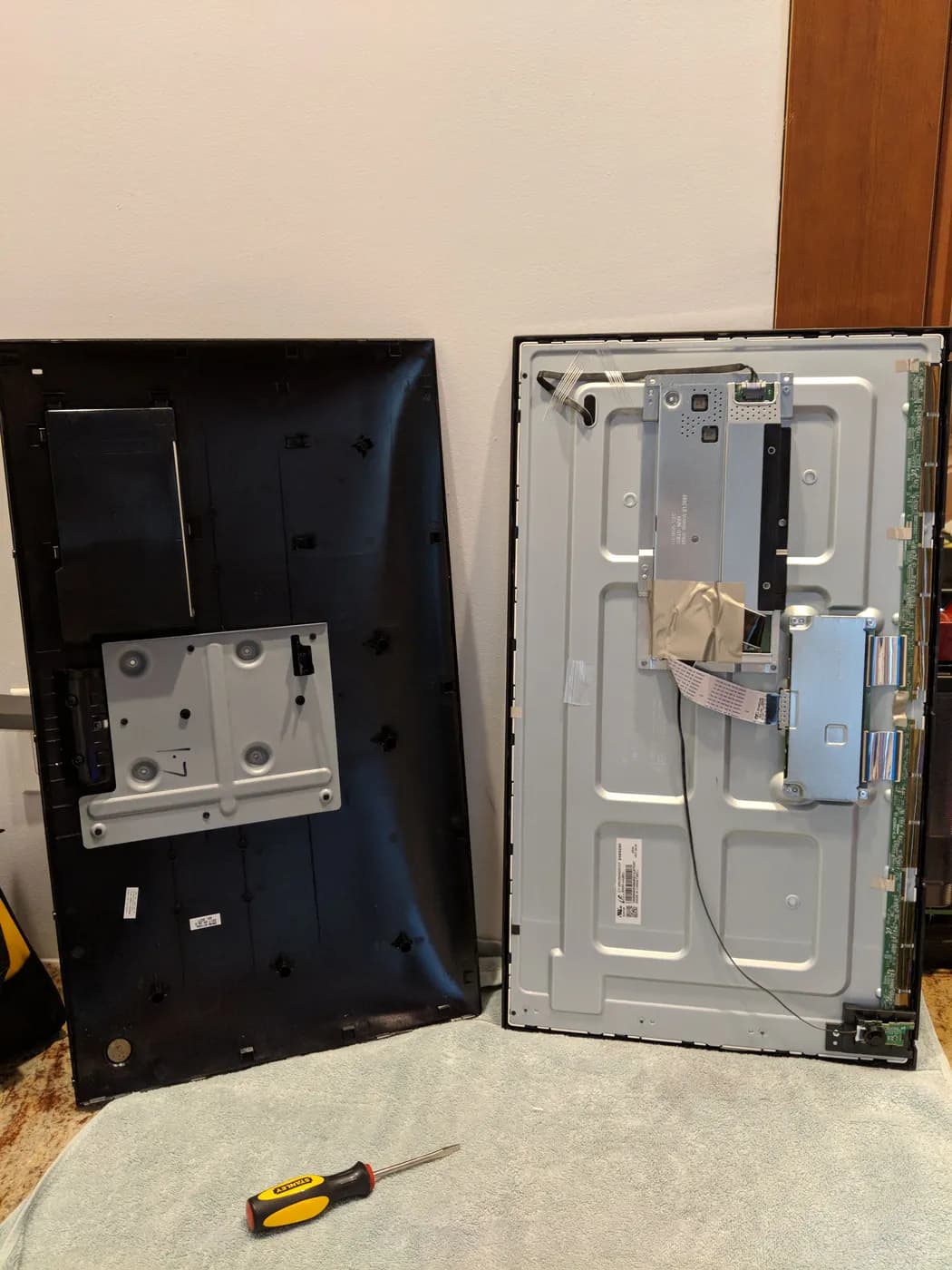
Back of a monitor panel with its VESA mounting plate exposed Match resolution and panel size to your actual viewing distance and desk depth
A 4K panel crammed onto a shallow desk at typical monitor viewing distance can make text and UI elements uncomfortably small without OS scaling adjustments, while the same resolution on a larger panel or at a greater viewing distance looks sharp without any downside.
This matters because buying based on resolution alone, without considering panel size and how far you'll actually sit from it, is a common mistake that leads to either eye strain from tiny text or wasted resolution that gets scaled back up anyway.
Check both the panel size and your desk's actual depth before choosing resolution, and consider that a 27-inch 1440p panel is often more usable day to day than a 24-inch 4K panel at typical desk distances.
Verify daisy-chaining support if you plan to run multiple monitors from one cable
Daisy-chaining lets one monitor pass a video signal through to a second monitor using a single upstream cable from your laptop, but this requires both the laptop's GPU driver and the monitor's own hardware to explicitly support it, DisplayPort MST specifically, not every USB-C monitor advertised for multi-monitor setups actually includes this capability.
This matters directly if you're trying to run two or more external displays from a laptop with limited USB-C ports, since daisy-chaining eliminates the need for a separate dock or hub.
Check the listing specifically for DisplayPort MST or daisy-chain support, and verify your laptop's GPU documentation confirms MST support before assuming any dual-USB-C-port monitor enables this.
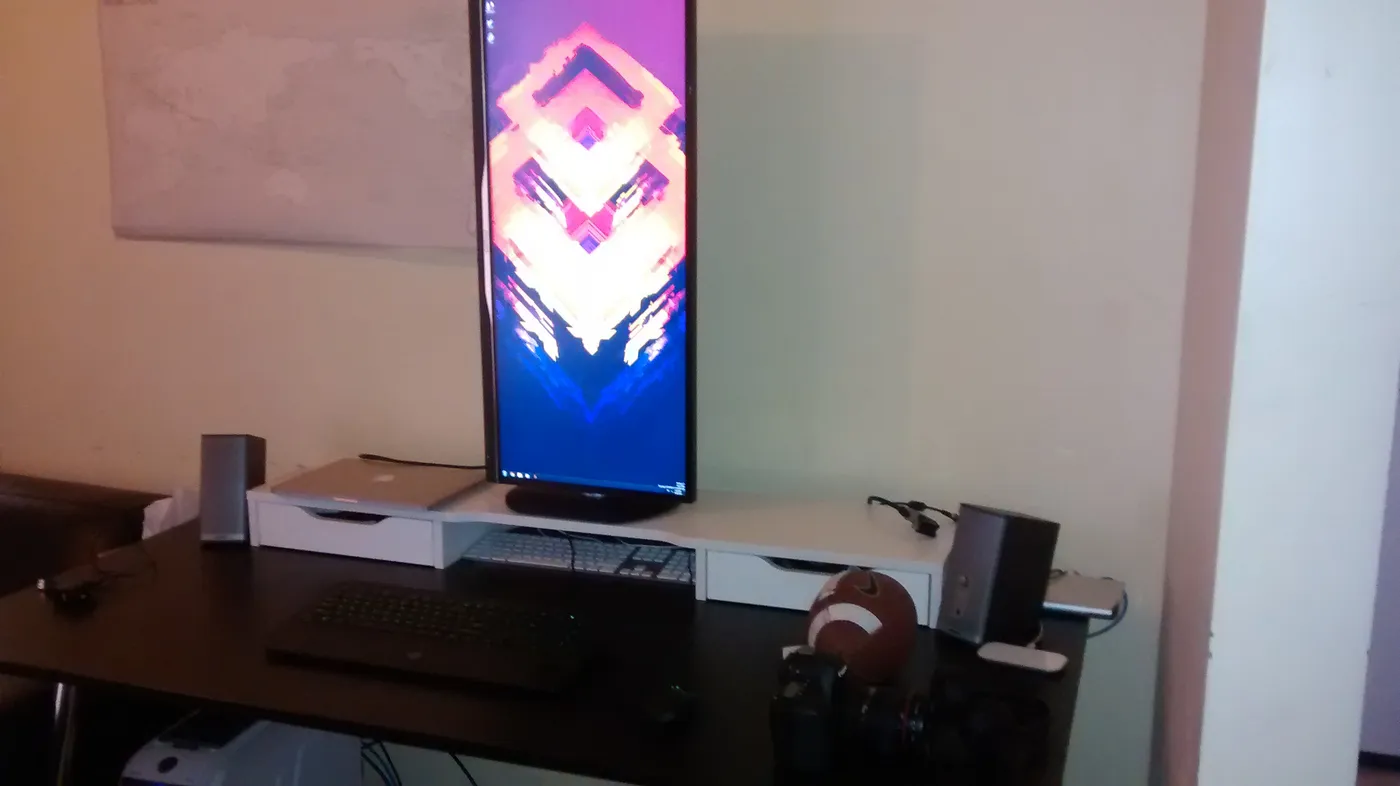
Monitor on a long desk with speakers Consider built-in USB hub ports as a genuine desk-decluttering feature, not filler
Some USB-C monitors include a small built-in USB hub, letting you plug a mouse, keyboard, or external drive directly into the monitor instead of running separate cables back to your laptop, which meaningfully reduces desk cable clutter if you already own USB-A peripherals.
This matters more if you're trying to run a single-cable setup between your laptop and monitor, since a monitor without hub ports means those peripherals still need their own separate connection.
Check the listing for the specific number and type of hub ports (USB-A vs USB-C, and their data speed), not just that it mentions "hub" somewhere in the description.
How to Choose a USB-C Monitor for MacBook Pro
By Rating Confidence: Highest Rated vs Most Reviewed
| Your priority | Recommended pick |
|---|---|
| Highest average rating | ASUS ProArt PA279CRV 27 Inch 4K UHD USB |
| Largest review base, strongest reliability signal | ASUS ProArt PA279CRV 27 Inch 4K UHD USB |

By Budget
| Budget | Recommended pick |
|---|---|
| Under $195 | INNOCN 27" 4K USB |
| Up to $399 | ASUS ProArt PA279CRV 27 Inch 4K UHD USB |
4K Resolution vs 1080p/1440p
- 4K resolution
- Sharper detail, best on a larger panel or closer viewing distance where the extra pixels are actually visible. In this comparison: ASUS ProArt PA279CRV 27 Inch 4K UHD USB, INNOCN 27" 4K USB.
- 1080p/1440p
- Usually cheaper and less demanding on your laptop's GPU, often the more practical choice at typical desk distances. In this comparison: Dell 27 Plus QHD USB, ASUS ProArt PA278CV 27 Inch 1440p QHD USB, ASUS ProArt PA247CV 24 Inch 1080p USB.
Default to 1080p/1440p unless your desk setup and viewing distance benefit from 4K's extra detail.
By Screen Size
| Your priority | Recommended pick |
|---|---|
| Around 27-inch panel | ASUS ProArt PA279CRV 27 Inch 4K UHD USB |
| Around 27-inch panel | INNOCN 27" 4K USB |
For a MacBook or Mac Setup Specifically
- Look for
- Confirmed DisplayPort Alt Mode support and a power delivery wattage matched to your MacBook's charging brick wattage.
- In this comparison
- Check each pick's listing directly, since PD wattage isn't consistently disclosed across every monitor in this comparison.
When to Spend More
- Spend more if
- You want full single-cable charging, sharper resolution, or built-in hub ports, where ASUS ProArt PA279CRV 27 Inch 4K UHD USB's higher price buys real headroom over the cheaper picks.
- Save if
- You already have a separate charger and just need a display, where INNOCN 27" 4K USB covers the same job at a lower price.
Frequently Asked Questions
Can my MacBook Pro drive a 4K monitor at full resolution?
Generally yes, MacBook Pro's Thunderbolt bandwidth comfortably handles 4K, but verify your specific generation's Thunderbolt version for the exact refresh rate achievable.
Do all MacBook Pro models support multiple external displays?
No, models with Pro, Max, or later chips generally support more external displays than base M-series configurations, check your specific chip variant.
Is a professional-calibrated monitor necessary for MacBook Pro use?
Only if you do color-critical creative work, general productivity use doesn't require professional-tier calibration.
Will my MacBook Pro drive a monitor's full 144Hz refresh rate?
It depends on your chip variant, Pro and Max chip generations generally handle higher refresh rates better than base M-series configurations.
Bottom Line
Best overall: ASUS ProArt PA279CRV 27 Inch 4K UHD USB-C HDR Professional Monitor for Mac — best usb-c monitor for macbook pro overall pick in this roundup. See the full verdicts above for every pick, with pros, cons and who each one suits.
Browse all usb-c monitors for macbook pro on Amazon — Prime-eligible options with current pricing.