
Buying Guide
The Best Printers for Chromebooks, Compared
We looked at 7 printers for chromebooks side by side, with the trade-offs that separate them and who each one suits.
By Jamie Cole, Lead Product Researcher
9 min read7 products evaluated
We may earn a commission from purchases made through links in this guide. Learn more.
Chromebooks can't install traditional manufacturer print drivers the way Windows or Mac can, so printing depends on a different technical path: driverless printing over IPP Everywhere, the standard that replaced Google Cloud Print. This constraint is rarely explained clearly, which leaves buyers assuming any wireless printer will simply work with ChromeOS.
Below are 7 printers we compared for standard wireless and AirPrint-style protocol support, the kind that generally works with ChromeOS's driverless printing setup. None of these listings explicitly advertise ChromeOS or IPP Everywhere certification in their titles, so we're framing this honestly: check the specific model's current Chromebook compatibility page before buying rather than assuming support from wireless capability alone.
Quick Picks
Our 7 recommendations at a glance. Tap a pick for the full verdict.

Best Budget Wireless All-in-One
HP DeskJet 4355 Wireless All-in-One Color Inkjet Printer
A budget Chromebook household with light printing needs
Our take Check price for HP DeskJet 4355 Wireless All-in-One Color Inkjet Printer (opens in a new tab)

Best with ADF for Chromebook Scanning
Canon PIXMA TR4720 All-in-One Wireless Printer
A Chromebook household that also scans multi-page documents regularly
Our take Check price for Canon PIXMA TR4720 All-in-One Wireless Printer (opens in a new tab)
Best Ink Tank for Chromebook Value
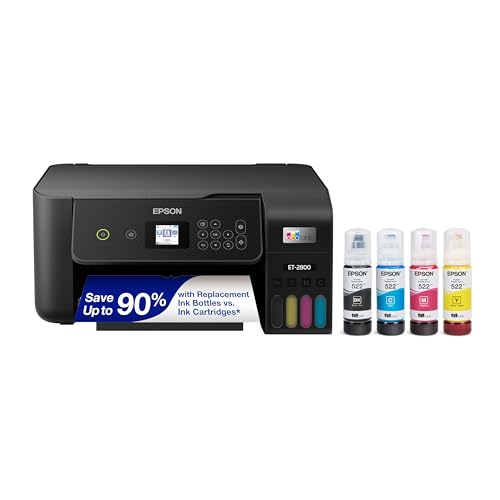
Epson EcoTank ET-2800 Wireless Color All-in-One
A Chromebook household that prints regularly and wants lower ink cost over time
Our take Check price for Epson EcoTank ET-2800 Wireless Color All-in-One (opens in a new tab)

Best Ink Tank with ADF and Ethernet
Epson EcoTank ET-4800 Wireless All-in-One
A Chromebook home office wanting a wired fallback option and ADF
Our take Check price for Epson EcoTank ET-4800 Wireless All-in-One (opens in a new tab)

Best with Display for Setup Troubleshooting
Brother Work Smart MFC-J1360DW Wireless Color Inkjet All-in-One
A Chromebook household that wants an on-device screen for connection troubleshooting
Our take Check price for Brother Work Smart MFC-J1360DW Wireless Color Inkjet All-in-One (opens in a new tab)

Best Laser for Text-Heavy Chromebook Printing
Brother DCP-L2640DW Wireless Compact Monochrome Laser Printer
A Chromebook household with high, mostly text-based print volume
Our take Check price for Brother DCP-L2640DW Wireless Compact Monochrome Laser Printer (opens in a new tab)
Best with AirPrint-Style Wireless
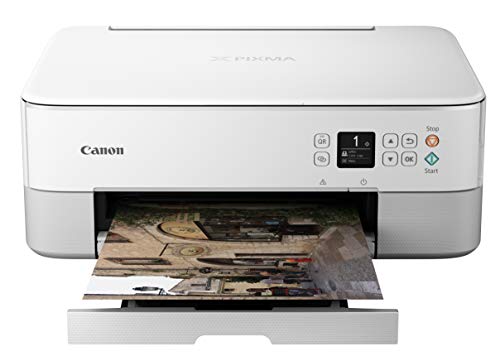
Canon PIXMA TS5320 All-in-One Wireless Printer with AirPrint
A Chromebook household that wants the closest thing to a confirmed driverless-friendly protocol in this list
Our take Check price for Canon PIXMA TS5320 All-in-One Wireless Printer with AirPrint (opens in a new tab)
Our Picks
Best Budget Wireless All-in-One1 of 7
HP DeskJet 4355 Wireless All-in-One Color Inkjet Printer on Amazon (opens in a new tab)
The DeskJet 4355 supports standard wireless printing that generally works with ChromeOS's driverless printing setup over IPP Everywhere, though HP's listing doesn't explicitly call out ChromeOS or Chromebook certification.
Best for
- A budget Chromebook household with light printing needs
Why we like it
It's a low-cost entry point for a household that mostly needs occasional document and photo printing from a Chromebook.
Before buying specifically for a Chromebook, check HP's current support page for this model to confirm IPP Everywhere or Google Cloud Print successor compatibility, since driver-based features some HP printers offer on Windows or Mac won't apply the same way from ChromeOS.
Standard wireless generally compatible with ChromeOS driverless printing.
Key dimensions & specs
- Wireless all-in-one: print, scan, copy
- Standard wireless protocol support
- 3-month Instant Ink trial included
- AI-capable setup features
- Compact footprint
Pros
- Low upfront cost
- Standard wireless generally compatible with ChromeOS driverless printing
- Compact for small desks
- Simple setup
Cons
- No explicit ChromeOS/IPP Everywhere certification listed
- Limited print settings from ChromeOS versus a full driver install on other platforms
- Standard cartridges, higher cost per page
Best with ADF for Chromebook Scanning2 of 7
Canon PIXMA TR4720 All-in-One Wireless Printer on Amazon (opens in a new tab)
The PIXMA TR4720 includes an auto document feeder alongside standard wireless printing, useful for a Chromebook user scanning multi-page documents through ChromeOS's built-in scanning support rather than a manufacturer's dedicated app.
Best for
- A Chromebook household that also scans multi-page documents regularly
Why we like it
Its wireless setup follows the same general protocols that typically support driverless ChromeOS printing.
Canon doesn't advertise explicit Chromebook certification for this model, so confirm current IPP Everywhere support on Canon's compatibility page before buying if Chromebook printing is your primary use case rather than a secondary one.
Key dimensions & specs
- Auto document feeder
- Built-in fax
- Standard wireless protocol support
- Mobile printing support
- Low price point
Pros
- ADF useful for ChromeOS built-in scanning
- Low upfront cost
- Standard wireless generally compatible with ChromeOS driverless printing
- Compact for tight desk space
Cons
- No explicit ChromeOS/IPP Everywhere certification listed
- ChromeOS print settings are more limited than a full driver install
- Standard cartridges carry idle-ink drying risk
Best Ink Tank for Chromebook Value3 of 7
Epson EcoTank ET-2800 Wireless Color All-in-One on Amazon (opens in a new tab)
The ET-2800's cartridge-free ink tank system pairs with standard wireless printing that generally works with ChromeOS's driverless setup, giving Chromebook households a lower long-run ink cost without any additional Chromebook-specific consideration.
Best for
- A Chromebook household that prints regularly and wants lower ink cost over time
Why we like it
As with the other picks here, Epson doesn't explicitly certify this model for ChromeOS in its listing.
Before buying, check Epson's current IPP Everywhere or driverless printing support page for this exact model, since driverless compatibility can differ even between similar EcoTank models depending on firmware version.
Key dimensions & specs
- Cartridge-free ink tank system
- Standard wireless protocol support
- Scan and copy included
- Lower long-run ink cost
- Compact for a small desk
Pros
- Lower long-run ink cost for regular Chromebook printing
- Standard wireless generally compatible with ChromeOS driverless printing
- No cartridge to replace often
- Simple refill process
Cons
- No explicit ChromeOS/IPP Everywhere certification listed
- Higher upfront cost than the cheapest cartridge inkjets
- Basic feature set, no ADF
Best Ink Tank with ADF and Ethernet4 of 7
Epson EcoTank ET-4800 Wireless All-in-One on Amazon (opens in a new tab)
The ET-4800 adds an ADF and Ethernet on top of the same ink tank system, giving a Chromebook-based home office an option to connect over a wired network if wireless driverless printing runs into setup issues on a particular router.
Best for
- A Chromebook home office wanting a wired fallback option and ADF
Why we like it
Its scan and copy functions work through ChromeOS's built-in tools rather than a dedicated app.
As with the ET-2800, Epson's listing doesn't explicitly certify Chromebook or IPP Everywhere compatibility, so check Epson's current support page for this model, particularly if you plan to rely on the Ethernet connection option for ChromeOS printing reliability.
Key dimensions & specs
- Cartridge-free ink tank system
- Automatic document feeder
- Ethernet + wireless connectivity
- Scan, copy, fax included
- Lower long-run ink cost
Pros
- Ethernet option as a wireless-driverless-printing fallback
- ADF for multi-page scanning
- Lower long-run ink cost
- Fax available if needed
Cons
- No explicit ChromeOS/IPP Everywhere certification listed
- Larger footprint than the ET-2800
- Pricier than the entry cartridge inkjets
Best with Display for Setup Troubleshooting5 of 7
Brother Work Smart MFC-J1360DW Wireless Color Inkjet All-in-One on Amazon (opens in a new tab)
8-inch color display makes it easier to confirm the printer's network status and IP address directly on the device, useful when troubleshooting a driverless printing connection from ChromeOS's more limited settings menu.
Best for
- A Chromebook household that wants an on-device screen for connection troubleshooting
Why we like it
Automatic duplex printing is included alongside standard wireless support.
Brother doesn't advertise explicit Chromebook certification for this model either, so verify current IPP Everywhere support on Brother's compatibility page before buying, especially since ChromeOS's print settings won't expose the same troubleshooting detail as Windows or Mac.
Key dimensions & specs
- 1.8" color display
- Automatic duplex printing
- Standard wireless protocol support
- LC501 series ink cartridges
- Mid-budget pricing
Pros
- Display helps confirm network status during ChromeOS setup
- Duplex printing included
- Standard wireless generally compatible with ChromeOS driverless printing
- Reasonable price for the feature set
Cons
- No explicit ChromeOS/IPP Everywhere certification listed
- Standard cartridges, ongoing ink cost
- ChromeOS print settings are more limited than a full driver install
Best Laser for Text-Heavy Chromebook Printing6 of 7
Brother DCP-L2640DW Wireless Compact Monochrome Laser Printer on Amazon (opens in a new tab)
For a Chromebook household that mostly prints text documents, like school assignments or work paperwork, this monochrome laser's standard wireless support and duplex printing pair with a lower cost per page than any inkjet in this list.
Best for
- A Chromebook household with high, mostly text-based print volume
Why we like it
Alexa compatibility is a bonus for households with smart speakers already set up.
As with the other picks, Brother's listing doesn't explicitly certify ChromeOS compatibility, so confirm current driverless printing support on Brother's site, particularly since ChromeOS printing settings expose fewer options than a full driver install would on another platform.
Key dimensions & specs
- Monochrome laser engine
- Duplex printing
- Standard wireless protocol support
- Works with Alexa
- 250-sheet paper tray
Pros
- Lower cost per page for text-heavy Chromebook printing
- Duplex printing built in
- Standard wireless generally compatible with ChromeOS driverless printing
- Large paper tray reduces refills
Cons
- No explicit ChromeOS/IPP Everywhere certification listed
- Monochrome only
- Higher upfront price than the inkjet picks
Best with AirPrint-Style Wireless7 of 7
Canon PIXMA TS5320 All-in-One Wireless Printer with AirPrint on Amazon (opens in a new tab)
The PIXMA TS5320 explicitly advertises AirPrint support, and printers with confirmed AirPrint compatibility are generally more likely to also support IPP Everywhere, the same underlying standard ChromeOS relies on for driverless printing, since both protocols share common ground.
Best for
- A Chromebook household that wants the closest thing to a confirmed driverless-friendly protocol in this list
Why we like it
That makes this one of the more reassuring picks in this list, though it's still not an explicit Chromebook certification.
Confirm current ChromeOS compatibility on Canon's support page before buying, since AirPrint support and full IPP Everywhere driverless support, while related, aren't guaranteed to be identical across every firmware version.
Wireless all-in-one with scan and copy.
Key dimensions & specs
- AirPrint support advertised
- Wireless all-in-one
- Works with Alexa
- Standard cartridge inkjet
- Compact design
Pros
- Advertised AirPrint support suggests broader driverless protocol compatibility
- Wireless all-in-one with scan and copy
- Works with Alexa
- Mid-range price for the feature set
Cons
- AirPrint support doesn't guarantee full IPP Everywhere ChromeOS certification
- Standard cartridges, ongoing ink cost
- No ADF included
How We Chose These Printers for Chromebooks
Each pick was assessed across 5 criteria weighted for real-world use.
- Checked whether each printer supports standard wireless printing protocols that generally underpin ChromeOS's driverless IPP Everywhere setup, since Chromebooks can't install traditional manufacturer drivers.
- Flagged that none of these listings explicitly advertise ChromeOS or IPP Everywhere certification, and recommended checking each manufacturer's current compatibility page before buying rather than assuming support.
- AirPrint support as a compatibility signal
- Weighed advertised AirPrint support as a modest positive signal for broader driverless protocol compatibility, since AirPrint and IPP Everywhere share underlying standards, without treating it as a guarantee.
- Considered ADF, duplex, and display features specifically for how they function through ChromeOS's built-in, more limited print and scan settings rather than a manufacturer's full driver interface.
- Value for a Chromebook-first household
- Balanced upfront cost and long-run ink cost against the reality that a Chromebook household can't use every advanced driver feature a printer offers on Windows or Mac.
What to Look for in a Printer for Chromebooks
Key buying criteria so you get the right fit the first time.
Match actual size and capacity to your real need, not the category label alone
Listings for a printer often use a size or capacity label ("compact," "large," "heavy-duty") that isn't standardized across brands, so the same label can mean meaningfully different actual dimensions or capacity from one product to the next.
This matters because buying based on the category label rather than the specific listed dimensions or capacity is a common way to end up with something that doesn't actually fit your space or handle your real load.
Check the listing for exact measurements or a stated capacity figure, and compare that directly against your actual space or need, not just the marketing size category.
Verify build material and construction quality from reviews, not just spec-sheet claims
A product description can describe material or construction in flattering terms that don't always hold up under real, sustained use, and the gap between a listing's claimed quality and its actual durability only shows up in how the product performs after weeks or months of real use, not in day-one photos.
This matters more for anything you'll use daily or under real load, less for occasional light use where durability matters less.
Check reviews specifically for mentions of how the printer holds up over time, not just unboxing-day impressions, and treat a listing's own quality claims as a starting point to verify, not a guarantee.
Confirm any headline feature actually works as advertised, not just that it's listed
A feature appearing in a product's bullet points doesn't guarantee it performs well in practice, some features are functional but limited, and a few are closer to a marketing checkbox than a useful capability.
This matters directly if a specific feature is the main reason you're choosing this printer over a simpler, cheaper alternative, since a feature that underperforms in practice undermines the whole reason for paying more.
Check reviews specifically for real-world experiences with the exact feature that matters most to you, not just whether the feature is listed at all.
Weigh review count alongside rating, not rating alone
This matters more for a purchase you're relying on to perform consistently over time, less for a low-stakes, easily replaceable item.
Check both the star rating and the review count together for any printer you're considering, and treat a high rating on a very small review count as a promising but less-proven signal.
Check compatibility and fit with your existing setup before ordering
A printer that looks like a straightforward fit in photos can still have a compatibility detail, a connector type, a mounting requirement, a size threshold, that doesn't match your existing setup, and this kind of mismatch is one of the most common and avoidable reasons for a return.
This matters directly if the product needs to physically connect to, mount on, or otherwise integrate with something you already own.
Check the listing's specific compatibility details against your exact existing setup, not just the general product category, before ordering.
How to Choose a Printer for Chromebooks
By Rating Confidence: Highest Rated vs Most Reviewed
| HP DeskJet 4355 Wireless All | |
| HP DeskJet 4355 Wireless All |
Canon PIXMA TR4720 All vs Brother DCP
- The lower-priced option in this comparison, worth checking its actual specs and review history against your specific need before assuming it's enough.
- The higher-priced option, worth it if it offers real, checkable headroom in build quality, capacity, or features over the cheaper pick.
Default to Canon PIXMA TR4720 All unless your specific need calls for the pricier pick's extra headroom.
| HP DeskJet 4355 Wireless All |
For a First-Time Buyer Specifically
- Clear, specific dimensions or capacity and a real, established review history, not just marketing language.
- You need real durability and feature depth for regular use, where Brother DCP's build gives real headroom over the cheaper picks.
- You only need this for light or occasional use, where Canon PIXMA TR4720 All covers the same job at a lower price.
Frequently Asked Questions
Will any wireless printer work with a Chromebook?
Chromebooks require IPP Everywhere, a driverless printing standard, since they can't install traditional manufacturer drivers. A printer being wireless is a prerequisite but not a guarantee of ChromeOS compatibility, so check the specific model's current support page before buying.
What is IPP Everywhere and why does it matter for Chromebooks?
IPP Everywhere is the driverless printing standard that succeeded Google Cloud Print, letting a Chromebook discover and print to a compatible printer over the network without installing manufacturer software. It's the actual technical requirement for Chromebook printing, more relevant than brand or price.
Does AirPrint support mean a printer works with Chromebooks too?
It's a helpful signal but not a guarantee. AirPrint and IPP Everywhere share underlying protocol standards, so a printer with advertised AirPrint support, like the Canon PIXMA TS5320 in this list, is somewhat more likely to work smoothly with ChromeOS, but confirm directly with the manufacturer before buying specifically for a Chromebook.
Why does ChromeOS show fewer printer settings than Windows?
ChromeOS's built-in print dialog is designed around driverless IPP Everywhere printing, which exposes basic settings like paper size and copies but not the detailed tray selection or maintenance tools available through a full manufacturer driver on Windows or Mac. This is a ChromeOS-wide limitation, not specific to any printer in this list.
None of these printers say "Chromebook compatible" on the box.
It's common across the printer market, not unique to these models. Most manufacturers don't prominently advertise IPP Everywhere or Chromebook certification even when a printer supports it. Search the exact model name plus "IPP Everywhere" or "Chromebook" on the manufacturer's current support page to confirm before purchasing.
Bottom Line
Best overall: HP DeskJet 4355 Wireless All-in-One Color Inkjet Printer — best budget wireless all-in-one pick in this roundup. See the full verdicts above for every pick, with pros, cons and who each one suits.
Browse all printers for chromebooks on Amazon — Prime-eligible options with current pricing.