
Buying Guide
The Best NAS for Automatic Computer Backup: Picks and Trade-offs
We looked at 8 NAS for automatic computer backup side by side, with the trade-offs that separate them and who each one suits.
By Jamie Cole, Lead Product Researcher
10 min read8 products evaluated
We may earn a commission from purchases made through links in this guide. Learn more.
A NAS built for automatic computer backup needs to run scheduled jobs without babysitting, which means the real differentiators are RAM headroom for background backup software, RAID support so one failed drive doesn't take your only copy with it, and a quota system that stops a single laptop's backup history from silently filling the whole array. Scheduling the backup is the easy part; keeping it running unattended for years is what separates a good pick from a frustrating one.
99 five-core 4-bay built for backing up several computers at once.
Quick Picks
Our 8 recommendations at a glance. Tap a pick for the full verdict.

Best for Synology Active Backup
Synology DS223 Home & Office Backup Hub
Households backing up 2-3 computers who want Synology's dedicated backup software
Our take Check price for Synology DS223 Home & Office Backup Hub (opens in a new tab)

Best for Large Backup Sets
UGREEN NAS DXP2800
Buyers backing up large media or project files, not just documents
Our take Check price for UGREEN NAS DXP2800 (opens in a new tab)

Best Budget Pick
UGREEN NAS DH2300
Budget buyers backing up a single computer who don't need extra NAS apps
Our take Check price for UGREEN NAS DH2300 (opens in a new tab)

Best Network Speed
QNAP TS-216G-US 2-Bay 2.5GbE Desktop NAS
5GbE home network who want faster first backups
Our take Check price for QNAP TS-216G-US 2-Bay 2.5GbE Desktop NAS (opens in a new tab)

Best Entry-Level Value
Asustor Drivestor 2 Gen 2 AS1202T
5GbE speed without paying more than the budget tier
Our take Check price for Asustor Drivestor 2 Gen 2 AS1202T (opens in a new tab)
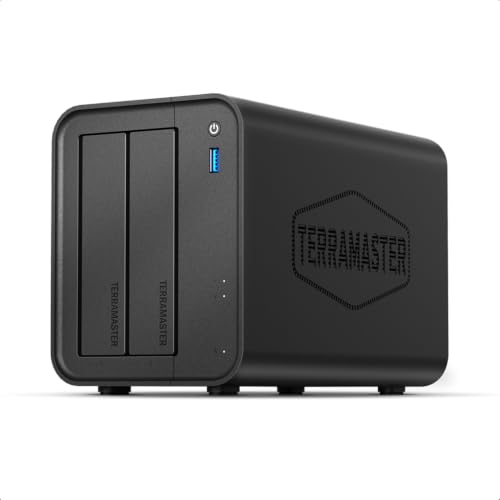
Best CPU for Multitasking
TERRAMASTER F2-425
Buyers who want Intel-class CPU headroom for backup plus other light services
Our take Check price for TERRAMASTER F2-425 (opens in a new tab)

Best RAM for Heavy Backup Loads
QNAP TS-264-8G-US 2-Bay Desktop NAS
Buyers who want to run several concurrent backup and cloud-sync jobs without a bottleneck
Our take Check price for QNAP TS-264-8G-US 2-Bay Desktop NAS (opens in a new tab)

Best for Multiple Computers
UGREEN NAS DXP4800 Plus
Households or small offices backing up 3+ computers who want RAID flexibility
Our take Check price for UGREEN NAS DXP4800 Plus (opens in a new tab)
Our Picks
Best for Synology Active Backup1 of 8
Synology DS223 Home & Office Backup Hub on Amazon (opens in a new tab)
The Synology DS223 is built around Active Backup for Business, Synology's free tool that backs up full PC and Mac images with deduplication, which makes it the strongest pick here for anyone backing up more than one computer from a single box.
Best for
- Households backing up 2-3 computers who want Synology's dedicated backup software
Why we like it
DSM's scheduler handles versioned, incremental backups without any third-party software.
As a 2-bay diskless unit it needs its own drives and a RAID 1 mirror before it holds any real redundancy, and its soldered RAM means the backup workload should stay its main job rather than one of several apps running at once. For a household backing up 2 to 3 computers on autopilot, it is the most complete option in this list.
DSM's backup scheduling is the most mature in this list.
Key dimensions & specs
- 2-bay diskless NAS
- Active Backup for Business (free, full PC/Mac image backup)
- RAID 1 support
- DSM scheduler for versioned backups
- Fixed RAM, not user-upgradeable
Pros
- Active Backup for Business handles multiple computers with deduplication
- DSM's backup scheduling is the most mature in this list
- RAID 1 protects against a single drive failure
- Well-documented setup process for backup specifically
Cons
- Diskless, needs 2 drives purchased separately
- Soldered RAM limits running backup alongside heavy extra apps
- 2024+ DSM shows compatibility warnings for non-Synology drives
Best for Large Backup Sets2 of 8
UGREEN NAS DXP2800 on Amazon (opens in a new tab)
The DXP2800 is positioned for content creators, which in backup terms means it has the horsepower to handle large incremental backup sets, such as a video editor's project drives, without stalling.
Best for
- Buyers backing up large media or project files, not just documents
Why we like it
UGREEN OS supports scheduled rsync and cloud-sync backup jobs alongside its own snapshot tool.
It costs more than the entry-level 2-bay picks here, which only pays off if your backup source is large media files or multiple high-capacity drives rather than a single laptop's documents folder. For lighter backup needs, a cheaper 2-bay in this list gets the same core job done.
Key dimensions & specs
- 2-bay NAS, content-creator tier hardware
- Scheduled rsync and cloud-sync backup jobs
- Snapshot-based versioning
- Higher-performance CPU for large file sets
- UGREEN OS app ecosystem
Pros
- Handles large incremental backups without stalling
- Snapshot versioning protects against ransomware and mistakes
- Multiple backup job types beyond just PC image backup
- Strong CPU headroom for concurrent tasks
Cons
- Priciest 2-bay pick in this list
- Overkill for backing up a single lightweight laptop
- Newer OS ecosystem with less community documentation than DSM
Best Budget Pick3 of 8
UGREEN NAS DH2300 on Amazon (opens in a new tab)
The DH2300 is the cheapest diskless 2-bay in this list, and it still supports up to 64TB of total capacity for buyers who want room to grow without upgrading the enclosure itself.
Best for
- Budget buyers backing up a single computer who don't need extra NAS apps
Why we like it
It runs scheduled backup jobs from a connected PC through UGREEN's standard OS tools. At this price the CPU and RAM are the most modest here, so it is best kept focused on backup duty rather than layered with Plex, surveillance, or other always-on services. For a single computer's automatic backup on a budget, it covers the basics without unnecessary extras. Supports high total capacity for its price.
Key dimensions & specs
- 2-bay diskless NAS
- Up to 64TB total supported capacity
- Scheduled backup jobs via UGREEN OS
- Entry-level CPU and RAM tier
- low-cost diskless enclosure
Pros
- Cheapest diskless 2-bay in this list
- Supports high total capacity for its price
- Simple setup focused on core backup function
- Good starting point for a first NAS backup setup
Cons
- Entry-level CPU limits running multiple simultaneous services
- Diskless, needs drives purchased separately
- Fewer advanced backup features than the Synology or QNAP picks
Best Network Speed4 of 8
QNAP TS-216G-US 2-Bay 2.5GbE Desktop NAS on Amazon (opens in a new tab)
5GbE adapter, since the first full backup of a modern SSD-heavy laptop can otherwise take most of a day over standard gigabit.
Best for
- 5GbE home network who want faster first backups
Why we like it
QNAP's Hybrid Backup Sync app handles scheduled local and cloud jobs.
5GbE; on a standard gigabit network it behaves like any other 2-bay NAS. It is the pick for buyers who already have or plan to upgrade their home network alongside the NAS.
5GbE router or switch, an extra cost.
Key dimensions & specs
- 2-bay desktop NAS
- 2.5GbE network port
- Hybrid Backup Sync for scheduled local/cloud jobs
- QNAP QTS operating system
- Standard 2-bay RAID support
Pros
- 2.5GbE port meaningfully speeds up large backups on a matching network
- Hybrid Backup Sync covers both local and cloud backup destinations
- QNAP's app store adds flexibility beyond pure backup
- Reasonable price for a 2.5GbE-equipped 2-bay
Cons
- 2.5GbE benefit requires a 2.5GbE router or switch, an extra cost
- On a standard gigabit network, speed matches non-2.5GbE picks
- Diskless, drives sold separately
Best Entry-Level Value5 of 8
Asustor Drivestor 2 Gen 2 AS1202T on Amazon (opens in a new tab)
5GbE networking at the same price as the UGREEN DH2300, giving it a faster network port without a price jump.
Best for
- 5GbE speed without paying more than the budget tier
Why we like it
Asustor's ADM OS includes scheduled backup apps for both Windows and Mac clients. Its 1GB of DDR4 RAM is on the lighter side, which is fine for a single backup job running on schedule but will feel tight if you also want file sync or a media app running at the same time. As a first NAS focused mainly on automatic backup, it is a well-balanced budget option. Quad-core CPU handles scheduled backup jobs smoothly.
Key dimensions & specs
- 2-bay NAS, quad-core 1.7GHz CPU
- 2.5GbE networking
- 1GB DDR4 RAM
- ADM OS backup apps for Windows and Mac
- 4K media server support
Pros
- 2.5GbE networking at entry-level pricing
- Quad-core CPU handles scheduled backup jobs smoothly
- Backup apps cover both Windows and Mac clients
- Good value against similarly priced 2-bay options
Cons
- 1GB RAM limits running much beyond backup and light file sharing
- Smaller app ecosystem than Synology or QNAP
- Diskless, drives sold separately
Best CPU for Multitasking6 of 8
TERRAMASTER F2-425 on Amazon (opens in a new tab)
The F2-425 runs on an Intel x86 quad-core CPU with 4GB of RAM, noticeably more headroom than the ARM-based budget picks in this list, which means scheduled backup jobs can run alongside file sharing or a lightweight media app without the whole system bogging down.
Best for
- Buyers who want Intel-class CPU headroom for backup plus other light services
Why we like it
TERRAMASTER's TOS software covers standard scheduled backup, though its app ecosystem and community documentation are smaller than Synology's or QNAP's. For buyers who want an Intel-class CPU and real RAM without paying 4-bay prices, it is a strong middle-tier choice.
Key dimensions & specs
- 2-bay NAS, Intel x86 quad-core CPU
- 4GB RAM
- 2.5GbE LAN
- TOS scheduled backup support
- Diskless enclosure
Pros
- Intel x86 CPU and 4GB RAM outclass ARM-based budget rivals
- 2.5GbE networking included
- Handles backup plus light extra services comfortably
- Competitive price for the hardware tier
Cons
- Smaller software ecosystem than Synology or QNAP
- Diskless, drives sold separately
- Less brand-name community support for troubleshooting
Best RAM for Heavy Backup Loads7 of 8
QNAP TS-264-8G-US 2-Bay Desktop NAS on Amazon (opens in a new tab)
The TS-264 ships with 8GB of RAM out of the box, the most of any 2-bay in this list, which matters if you plan to run scheduled backup for several computers plus Hybrid Backup Sync's cloud replication at the same time without either job slowing down.
Best for
- Buyers who want to run several concurrent backup and cloud-sync jobs without a bottleneck
Why we like it
It is a more capable machine than a budget 2-bay, at a matching price. It costs more than double most other 2-bay picks here, so it makes sense mainly for buyers who know they will push it with concurrent backup jobs or additional QNAP apps, not for a single lightly used laptop. Treat the price as an investment in headroom rather than a backup-only purchase. Strong headroom for cloud replication alongside local backup.
Key dimensions & specs
- 2-bay desktop NAS
- 8GB RAM (highest in this list for a 2-bay)
- 2.5GbE networking
- Hybrid Backup Sync for local + cloud jobs
- QNAP QTS with full app store
Pros
- 8GB RAM handles multiple concurrent backup jobs without slowdown
- Strong headroom for cloud replication alongside local backup
- Full QNAP app ecosystem for future expansion
- 2.5GbE networking included
Cons
- Most expensive 2-bay pick in this list
- Overkill if you're only backing up one computer
- Diskless, drives add to total cost
Best for Multiple Computers8 of 8
UGREEN NAS DXP4800 Plus on Amazon (opens in a new tab)
The DXP4800 Plus is the only 4-bay in this list, built around an Intel Pentium Gold 8505 5-core CPU that can comfortably run scheduled backup jobs for several computers at once alongside RAID rebuilds and other services.
Best for
- Households or small offices backing up 3+ computers who want RAID flexibility
Why we like it
Four bays also mean more RAID configuration flexibility than any 2-bay option here allows.
It is the most expensive pick in this list before drives are even factored in, and a 4-bay setup with 4 matching drives adds real cost on top of the enclosure. For a household or small office backing up 3 or more computers automatically, the extra bays and CPU headroom are what justify the price.
Key dimensions & specs
- 4-bay diskless NAS
- Intel Pentium Gold 8505 5-core CPU
- Supports RAID 5/6/10 configurations
- Handles multiple simultaneous backup jobs
- Highest total capacity ceiling in this list
Pros
- 5-core Intel CPU handles multiple simultaneous backup jobs easily
- 4 bays allow RAID 5/6/10 for better redundancy than a 2-bay
- Highest total capacity ceiling in this list
- Room to add other services without impacting backup performance
Cons
- Most expensive enclosure in this list
- Needs 4 matching drives, a significant added cost
- More setup complexity than a simple 2-bay for a single computer
How We Chose These NAS for Automatic Computer Backup
Each pick was assessed across 5 criteria weighted for real-world use.
- Compared each platform's scheduled backup tools, Synology Active Backup, QNAP Hybrid Backup Sync, UGREEN and Asustor's native apps, for versioning, deduplication, and cloud-destination support.
- RAM headroom for unattended jobs
- Weighed RAM against whether backup can run alongside other always-on services without slowing down or requiring the NAS's sole attention.
- Scored 2-bay vs 4-bay configurations on redundancy options and how much usable capacity survives after RAID overhead.
- Network speed for backup windows
- 5GbE ports, since network speed directly determines how long a first full backup takes.
- True total cost including drives
- Factored diskless enclosure price against the real drive cost needed to make each pick fully operational, not just the sticker price.
What to Look for in an NA for Automatic Computer Backup
Key buying criteria so you get the right fit the first time.
Remember every listed NAS here is diskless, budget drives separately
The price shown for a NAS enclosure covers the hardware chassis, CPU, and RAM only, not the actual storage drives, NAS-grade drives built for 24/7 operation like Seagate IronWolf or WD Red still need to be budgeted on top, often adding $80 to $200 or more per bay depending on capacity and drive type.
This matters because comparing NAS units purely by enclosure price without factoring in drive cost gives a misleading picture of the real total investment, a cheaper enclosure with more bays to fill can end up costing more overall than a pricier enclosure with fewer bays.
Check whether a listing is diskless or ships with drives included, and add realistic per-bay drive costs to the enclosure price before comparing total cost across options.
Weigh CPU class and RAM over bay count for real day-to-day performance
Bay count determines maximum storage capacity, but CPU architecture (Intel, AMD, or ARM) and RAM amount determine how well the NAS actually handles real workloads, running apps, transcoding media on the fly, or serving multiple simultaneous users, and a higher bay count with a weak CPU can bottleneck performance regardless of how much raw storage it holds.
This matters more the more the NAS will do beyond simple file storage, like Plex transcoding or running multiple docker containers, less if it's purely a basic backup target.
Check the specific CPU model and RAM amount (and whether RAM is upgradeable) rather than choosing primarily by bay count.
Understand RAID as a rebuild-time safety net, not a substitute for real backup
RAID configurations protect against a single drive failure by letting the array rebuild from redundant data, but RAID is not a backup, it does nothing to protect against accidental deletion, ransomware, theft, fire, or a controller failure that affects the whole array at once.
This distinction matters because treating RAID redundancy as sufficient backup protection is a common and risky misunderstanding, a real backup strategy needs a copy of critical data stored somewhere physically separate from the NAS itself.
Check what RAID level a given NAS supports, and separately plan an actual backup strategy, ideally following a 3-2-1 approach, rather than relying on RAID redundancy alone.
Match drive type (HDD vs SSD/NVMe) to your actual access pattern
Traditional hard drives offer the lowest cost per terabyte for bulk storage like media libraries or backups, while SSD or NVMe-based NAS storage costs significantly more per terabyte but delivers much faster random access speeds, useful for frequently-accessed files, active project work, or serving as a fast cache tier.
This matters directly based on how you'll actually use the storage, a media library accessed sequentially benefits little from SSD speed, while an active working file share benefits considerably.
Check whether the NAS supports the drive type you need, and weigh the real cost-per-terabyte difference against how much you'll actually benefit from faster random access.
Consider noise level if the NAS will run continuously in a shared living or office space
A NAS that runs 24/7 generates continuous fan and drive noise, and that noise profile varies meaningfully between models, some use larger, slower-spinning fans that stay quiet, while others rely on smaller, faster fans that produce a persistent whine noticeable in a quiet room.
This matters a great deal if the NAS will sit in a bedroom, living room, or shared home office rather than a dedicated closet or basement out of earshot.
Check reviews specifically for real-world noise level mentions during continuous operation, not just idle noise, since drive activity and fan speed both increase under load.
How to Choose an NA for Automatic Computer Backup
By Rating Confidence: Highest Rated vs Most Reviewed
| Synology DS223 Home & Office Backup Hub | |
| Synology DS223 Home & Office Backup Hub |
Diskless Enclosure vs Drives Included
- Lets you choose your own NAS-grade drives and capacity, but budget $80-200+ per bay separately. In this comparison: Synology DS223 Home & Office Backup Hub, UGREEN NAS DH2300, TERRAMASTER F2, UGREEN NAS DXP4800 Plus.
- Ready to use out of the box, simpler for a first NAS purchase. In this comparison: UGREEN NAS DXP2800, QNAP TS, Asustor Drivestor 2 Gen 2 AS1202T, QNAP TS.
Default to diskless if you want control over drive choice and capacity, drives-included for the simplest setup.
| SSD/NVMe for fast random access | |
|---|---|
| HDD for bulk storage is enough | Synology DS223 Home & Office Backup Hub |
For Media Streaming or Plex Specifically
- A CPU capable of hardware transcoding and enough RAM to handle multiple simultaneous streams, not just total bay count.
- You need real multi-user performance, media transcoding, or business-critical reliability, where UGREEN NAS DXP4800 Plus's CPU and RAM give real headroom over the cheaper picks.
- You just need simple backup storage for one or two users, where UGREEN NAS DH2300 covers the same job at a lower price.
Frequently Asked Questions
Will my Mac backups stop working because of AFP being removed?
If your NAS firmware only advertises AFP for Time Machine, yes, backups will silently stop working once your Mac updates past macOS 27. Before buying or updating, confirm the NAS is configured for SMB3 with Bonjour/MDNS advertising the Time Machine service, which is the protocol combination Apple is standardizing on.
How much usable storage do I actually get in RAID 1?
RAID 1 mirrors your data across two drives, so two 4TB drives give you 4TB of usable, protected space rather than the combined 8TB. If you need more usable capacity with redundancy, a 4-bay NAS in RAID 5 gives you roughly 75% of total raw capacity instead of 50%.
Should I use Active Backup for Business or Time Machine on a Synology NAS?
Active Backup for Business is the better choice for backing up multiple PCs and Macs with full-image, deduplicated backups, and it's the stronger option for IT-style management. Time Machine on the NAS is simpler and more tightly integrated for a single home Mac user who just wants the native macOS backup experience.
Do I still need cloud backup if I have a NAS?
A NAS covers the local backup leg of the 3-2-1 rule, 3 copies of your data across 2 media types with 1 copy offsite, but it doesn't protect against fire, theft, or a ransomware attack that reaches your home network. Pair local NAS backup with a cloud destination for anything you can't afford to lose.
How do I know if my backup is actually working, not just scheduled?
A scheduled job can run for months while quietly failing to produce a restorable backup due to RAID errors or file corruption. Periodically, at least quarterly, restore a real file or folder from the backup to confirm it's actually usable, rather than trusting the scheduler's success notification alone.
Is a 2-bay NAS enough for backing up 2 computers?
Yes, for 2 computers with typical document and photo backup needs, a 2-bay NAS like the Synology DS223 works well as long as you set a quota per computer so one machine's backup history doesn't consume the whole array. For 3 or more computers, or heavier media backup, a 4-bay with more RAM handles concurrent jobs more comfortably.
Bottom Line
Best overall: Synology DS223 Home & Office Backup Hub — best for synology active backup pick in this roundup. See the full verdicts above for every pick, with pros, cons and who each one suits.
Browse all nas for automatic computer backup on Amazon — Prime-eligible options with current pricing.