
Buying Guide
The Best Docking Stations for Gaming Laptops, and What They Can't Do
Seven docks compared for gaming laptops on native versus DisplayLink output, refresh rate, charging limits and ports.
By Jamie Cole, Lead Product Researcher
10 min read7 products evaluated
We may earn a commission from purchases made through links in this guide. Learn more.
A dock can tidy a gaming laptop's desk, but two limits matter. Many gaming laptops draw more power under load than USB-C can supply, so keep the laptop's own charger connected while gaming. And DisplayLink docks, which drive displays in software, aren't suited to games.
For gaming on an external monitor, the most direct route is the laptop's own HDMI or DisplayPort. A dock is still useful for the rest of the setup, and a native high-refresh dock like the Razer USB4 Dock can drive fast monitors if your laptop has USB4 or Thunderbolt.
Our comparison is based on published specifications, not hands-on testing.
Quick Picks
Our 7 recommendations at a glance. Tap a pick for the full verdict.

Best for Gaming Laptops
Razer USB4 Dock: 14 Ports, Dual Monitor Up to 4K 120Hz
Razer's 14-port USB4 dock with dual monitors up to 4K at 120Hz, Ethernet, SD and audio.
Best for: USB4 gaming laptops with high-refresh monitors.
Our take Check price for Razer USB4 Dock: 14 Ports, Dual Monitor Up to 4K 120Hz (opens in a new tab)

Triple Displays for Work, Not Games
Anker Prime Docking Station (DL7400), 14-Port Triple Display with DisplayLink
A 14-port DisplayLink dock with triple 4K at 60Hz, 140W output and a cooling fan.
Best for: Windows laptops driving three 4K monitors.
Our take Check price for Anker Prime Docking Station (DL7400), 14-Port Triple Display with DisplayLink (opens in a new tab)

Best Certified Thunderbolt 4 Option
Plugable Thunderbolt 4 Dock (TBT-UDM), 100W Charging
A Thunderbolt 4 certified dock with 100W charging, dual 4K or single 6K output, SD and Ethernet.
Best for: Thunderbolt and recent MacBook users who want dependable dual-display docking.
Our take Check price for Plugable Thunderbolt 4 Dock (TBT-UDM), 100W Charging (opens in a new tab)

DisplayLink Dual 4K for Work
WAVLINK USB C Docking Station Dual Monitor, Dual 5K/4K@60Hz DisplayLink
A DisplayLink dock with 130W PD rating, dual 5K/4K output, 2 HDMI, 2 DisplayPort and Ethernet.
Best for: Base M-series MacBooks that need two external monitors.
Our take Check price for WAVLINK USB C Docking Station Dual Monitor, Dual 5K/4K@60Hz DisplayLink (opens in a new tab)
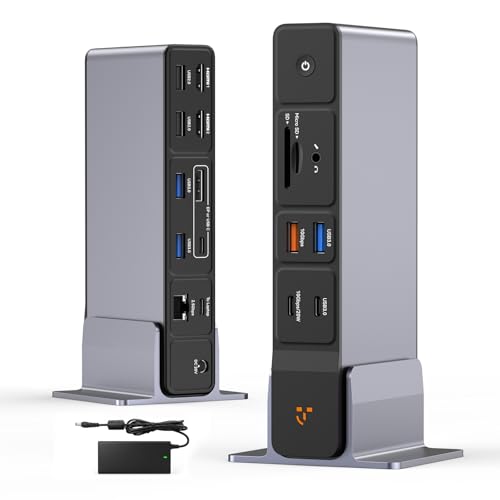
Most Ports
TobenONE USB C Docking Station 3 Monitors, 18-in-1
An 18-in-1 dock with triple 4K via HDMI/DP/USB-C, 8 USB ports up to 10Gbps and a 150W adapter.
Best for: Windows or Chromebook desks needing many ports.
Our take Check price for TobenONE USB C Docking Station 3 Monitors, 18-in-1 (opens in a new tab)

Best Low-Cost Triple Display
MOKiN USB C Docking Station 3 Monitors, Triple Display with Smart Display
A triple-display USB-C dock with 3 HDMI and 2 DP, 100W, 10Gbps USB, Ethernet and a status display.
Best for: A budget multi-monitor work setup.
Our take Check price for MOKiN USB C Docking Station 3 Monitors, Triple Display with Smart Display (opens in a new tab)

Lowest Price, with Card Reader
Selore Laptop Docking Station 3 Monitors, Triple 4K Display
A triple-4K USB-C dock with 3 HDMI and 2 DP, 100W, Ethernet, SD/microSD and a status display.
Best for: Budget multi-monitor setups that also need a card reader.
Our take Check price for Selore Laptop Docking Station 3 Monitors, Triple 4K Display (opens in a new tab)
Our Picks
Best for Gaming Laptops1 of 7
Razer USB4 Dock: 14 Ports, Dual Monitor Up to 4K 120Hz on Amazon (opens in a new tab)
The Razer USB4 Dock is the one here designed around gaming: it drives two monitors at up to 4K 120Hz natively over USB4, which suits high-refresh displays, with 14 ports including HDMI, DisplayPort, Ethernet, SD and a 3.5mm jack.
Best for
- USB4 gaming laptops with high-refresh monitors.
Skip if
- Your laptop lacks USB4/Thunderbolt; a USB-C dock is the realistic option.
Why we like it
It fast-charges a laptop and phone, but gaming laptops often need more power than USB-C provides under load, so keep the laptop's own charger connected while gaming. High-refresh output requires a USB4 or Thunderbolt port.
Key dimensions & specs
- Connection: USB4
- Displays: dual up to 4K@120Hz
- Ports: 14 (USB-C/A, HDMI, DP, Ethernet, SD, 3.5mm)
- Charging: laptop and phone fast charge
- OS: Windows, Mac
Pros
- High-refresh dual 4K
- Native output
- Gaming-oriented port mix
Cons
- Needs USB4/Thunderbolt port
- Charging wattage not stated in summary
- Most expensive here
Triple Displays for Work, Not Games2 of 7
Anker Prime Docking Station (DL7400), 14-Port Triple Display with DisplayLink on Amazon (opens in a new tab)
The Anker DL7400 drives three 4K displays at 60Hz via DisplayLink, with 140W output and a cooling fan.
Best for
- Windows laptops driving three 4K monitors.
Skip if
- You use a Mac; the Plugable UD-ULTCDL lists Mac support.
Why we like it
That suits a gaming laptop's work setup, but DisplayLink compresses video in software and isn't suited to games; connect your gaming monitor directly to the laptop.
It lists Windows laptops and requires the DisplayLink driver.
Key dimensions & specs
- Displays: triple 4K@60Hz via DisplayLink
- Output: 140W max
- Cooling: built-in fan
- Ports: 14
- OS: Windows (driver required)
Pros
- Three 4K 60Hz displays
- 140W
- Cooling fan
Cons
- DisplayLink unsuitable for gaming
- Driver required
- Fan may be audible
Best Certified Thunderbolt 4 Option3 of 7
Plugable Thunderbolt 4 Dock (TBT-UDM), 100W Charging on Amazon (opens in a new tab)
The Plugable TBT-UDM is the dock to choose if you want certified performance: it is Thunderbolt 4 certified, supports dual 4K or a single 6K display, and charges at up to 100W.
Best for
- Thunderbolt and recent MacBook users who want dependable dual-display docking.
Skip if
- You want high-refresh 4K; the Razer lists 4K at 120Hz.
Why we like it
It has six USB ports, an SD card slot and Ethernet, needs no drivers on Mac or Windows, and Plugable lists it for M4 and M5 MacBook Air and Pro.
It was the most expensive dock here at the time of writing, and its full bandwidth needs a Thunderbolt or USB4 port on the laptop. Like every 100W dock, it won't match the charging speed of a larger laptop's higher-wattage charger.
Key dimensions & specs
- Certification: Thunderbolt 4
- Charging: up to 100W
- Displays: dual 4K or single 6K
- Ports: 6x USB, SD, Ethernet
- Setup: driverless (Mac, Windows)
Pros
- Thunderbolt 4 certified
- Driverless on Mac and Windows
- SD and Ethernet
Cons
- Most expensive here at the time of writing
- Full bandwidth needs a Thunderbolt/USB4 port
- 100W ceiling for large laptops
DisplayLink Dual 4K for Work4 of 7
WAVLINK USB C Docking Station Dual Monitor, Dual 5K/4K@60Hz DisplayLink on Amazon (opens in a new tab)
The WAVLINK uses DisplayLink to drive two external displays at up to 5K or 4K at 60Hz, which WAVLINK lists as working across M1 to M4 Macs and Windows.
Best for
- Base M-series MacBooks that need two external monitors.
Skip if
- Your laptop supports multiple displays natively; the Anker Nano avoids DisplayLink for less.
Why we like it
That matters because many base M-series Macs natively support only one external display.
It has a 130W PD rating, two HDMI and two DisplayPort outputs, Gigabit Ethernet, five USB ports and audio.
DisplayLink requires driver software, adds some processor load and is less suited to color-critical work or gaming. Charging to one laptop is still subject to USB PD limits.
Key dimensions & specs
- Charging: 130W PD rating
- Displays: dual 5K/4K@60Hz via DisplayLink
- Video ports: 2x HDMI, 2x DisplayPort
- Ethernet: Gigabit
- USB: 5 ports
Pros
- Dual displays on Macs that support only one natively
- Many video outputs
- Ethernet
Cons
- Requires DisplayLink software
- Adds processor load
- Not for color-critical work
Most Ports5 of 7
TobenONE USB C Docking Station 3 Monitors, 18-in-1 on Amazon (opens in a new tab)
The TobenONE 18-in-1 offers the most ports here: eight USB ports up to 10Gbps, triple 4K output across HDMI, DisplayPort and USB-C, and a 150W adapter with a 20W fast-charge port.
Best for
- Windows or Chromebook desks needing many ports.
Skip if
- You want high-refresh output; the Razer is designed for it.
Why we like it
It lists Windows and ChromeOS compatibility.
The listing summary doesn't confirm 2.5GbE, so check the Ethernet speed.
Key dimensions & specs
- Displays: triple 4K (HDMI/DP/USB-C)
- USB: 8 ports up to 10Gbps
- Power: 150W adapter + 20W port
- OS: Windows, ChromeOS
Pros
- Many ports
- Triple 4K
- Lowest price here
Cons
- Display method/refresh not detailed
- Mac not listed
- Less established brand
Best Low-Cost Triple Display6 of 7
MOKiN USB C Docking Station 3 Monitors, Triple Display with Smart Display on Amazon (opens in a new tab)
The MOKiN offers triple display output across three HDMI and two DisplayPort connections, with 100W charging, 10Gbps USB-A/C, Gigabit Ethernet and a small status display, at under $80 at the time of writing.
Best for
- A budget multi-monitor work setup.
Skip if
- You want high-refresh gaming output; connect the monitor to the laptop or use the Razer.
Why we like it
The listing summary doesn't say how the three displays are driven or at what refresh rate; triple display depends on your laptop.
Key dimensions & specs
- Displays: triple (3x HDMI, 2x DP)
- Charging: 100W
- USB: 10Gbps A/C
- Ethernet: Gigabit
- Status display
Pros
- Low price for triple display
- Many video outputs
- 10Gbps USB
Cons
- Display method/refresh not detailed
- Depends on laptop support
- Less established brand
Lowest Price, with Card Reader7 of 7
Selore Laptop Docking Station 3 Monitors, Triple 4K Display on Amazon (opens in a new tab)
The Selore closely matches the MOKiN's outputs, triple 4K across three HDMI and two DisplayPort, 100W, 10Gbps USB and Gigabit Ethernet, and adds an SD/microSD reader, at the lowest price here.
Best for
- Budget multi-monitor setups that also need a card reader.
Skip if
- You need high refresh; the Razer lists 4K at 120Hz.
Why we like it
As with the MOKiN, the listing doesn't detail how the displays are driven or their refresh rate.
Key dimensions & specs
- Displays: triple 4K (3x HDMI, 2x DP)
- Charging: 100W
- USB: 10Gbps A/C
- Ethernet: Gigabit
- SD/microSD; status display
Pros
- Lowest price here
- Card reader
- Many video outputs
Cons
- Display method/refresh not detailed
- Depends on laptop
- Less established brand
How We Chose These Docking Stations for Gaming Laptops
Each pick was assessed across 4 criteria weighted for real-world use.
- Display route and refresh
- We noted native versus DisplayLink and listed refresh rates.
- Charging
- We compared power delivery against typical gaming laptop needs.
- Ports
- We compared connectivity.
- Price
- We compared prices at the time of writing.
What to Look for in a Docking Station for Gaming Laptops
Key buying criteria so you get the right fit the first time.
Keep the gaming monitor native
Use a native dock (Razer, Plugable) or the laptop's own port; avoid DisplayLink for games.
Plan power
USB-C charging tops out at 100W for most docks; many gaming laptops need their own charger under load.
Check refresh rate
The Razer lists 4K at 120Hz; most others list 60Hz or don't say.
Match the port
USB4/Thunderbolt docks need a matching laptop port.
How to Choose a Docking Station for Gaming Laptops
By setup
| Setup | Consider |
|---|---|
| High-refresh gaming monitors, USB4 | Razer USB4 Dock |
| Thunderbolt 4 laptop | Plugable TBT-UDM |
| Work: three 4K displays | Anker DL7400 |
| Work: dual 4K via DisplayLink | WAVLINK 13-in-1 |
| Many ports | TobenONE 18-in-1 |
| Budget triple display | MOKiN or Selore |
Frequently Asked Questions
Can a dock power my gaming laptop?
Often not fully under load; keep the laptop's own charger connected while gaming.
Can I game through DisplayLink?
It isn't recommended; use native output or the laptop's own port.
Which dock supports high refresh?
The Razer lists dual monitors up to 4K at 120Hz.
Do I need USB4 or Thunderbolt?
For the Razer and Plugable at full capability, yes.
Are triple-display docks useful?
For work across three screens, yes; for gaming, connect the main monitor natively.
Bottom Line
For gaming, the Razer USB4 Dock is the one designed for high-refresh monitors, if your laptop has USB4 or Thunderbolt; the Plugable TBT-UDM is the certified Thunderbolt 4 alternative.
The DisplayLink and budget triple-display docks suit work setups; for games, connect the monitor to the laptop directly and keep its own charger plugged in.