
Buying Guide
The Best Portable Monitors for MacBook Pro, Compared
We looked at 8 portable monitors for MacBook pro side by side, with the trade-offs that separate them and who each one suits.
By Jamie Cole, Lead Product Researcher
11 min read8 products evaluated
We may earn a commission from purchases made through links in this guide. Learn more.
The biggest thing competing portable-monitor roundups miss for MacBook Pro buyers is that display support depends on chip tier, not the word "Pro" on the box. Base M1/M2 13-inch MacBook Pro supports only one external display; M1 Pro/Max, M2 Pro/Max, M3 Pro/Max, and M4 Pro/Max support two external displays without needing clamshell mode. If you're buying a second portable monitor hoping for a third total screen, check your chip tier first, this guide won't repeat that mistake for you.
The 8 picks below are ranked with MacBook Pro's specific quirks in mind: none of them match the built-in display's 120Hz ProMotion or P3/XDR color, so we call out exactly how close (or far) each one gets, plus which ones use full-size HDMI instead of an adapter-dependent mini-HDMI port.
Quick Picks
Our 8 recommendations at a glance. Tap a pick for the full verdict.
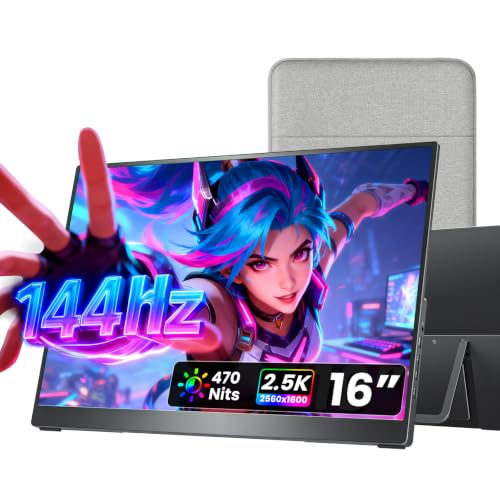
Best Overall for MacBook Pro
cocopar Portable Monitor 16 Inch 2.5K QHD 110% sRGB 144Hz USB-C, 120Hz HDMI
MacBook Pro owners on any chip tier who want the closest aspect-ratio match and real VESA mounting without paying for 4K
Our take Check price for cocopar Portable Monitor 16 Inch 2.5K QHD 110% sRGB 144Hz USB-C, 120Hz HDMI (opens in a new tab)

Best for Color-Critical Work
VisionOwl Portable Monitor 15.6 Inch 4K UHD 145% sRGB
MacBook Pro owners doing color-sensitive photo or design work who want the closest available gamut match on a budget
Our take Check price for VisionOwl Portable Monitor 15.6 Inch 4K UHD 145% sRGB (opens in a new tab)

Best 470-Nit Brightness
VisionOwl Portable Monitor 16 Inch 2.5K QHD 144Hz, 470 Nits
MacBook Pro users who regularly work near bright windows or outdoors and want the brightest available panel
Our take Check price for VisionOwl Portable Monitor 16 Inch 2.5K QHD 144Hz, 470 Nits (opens in a new tab)

Best Large-Screen Budget Pick
VisionOwl Portable Monitor for Laptop, 18.5 Inch FHD 100Hz
MacBook Pro users who prioritize raw screen space for spreadsheets and multi-window work over pixel density
Our take Check price for VisionOwl Portable Monitor for Laptop, 18.5 Inch FHD 100Hz (opens in a new tab)

Best Large 2K Screen
cocopar Portable Monitor 18.5 Inch 2K QHD 120Hz 120% sRGB
MacBook Pro users who want a large, sharp 2K screen and don't mind the extra travel weight
Our take Check price for cocopar Portable Monitor 18.5 Inch 2K QHD 120Hz 120% sRGB (opens in a new tab)
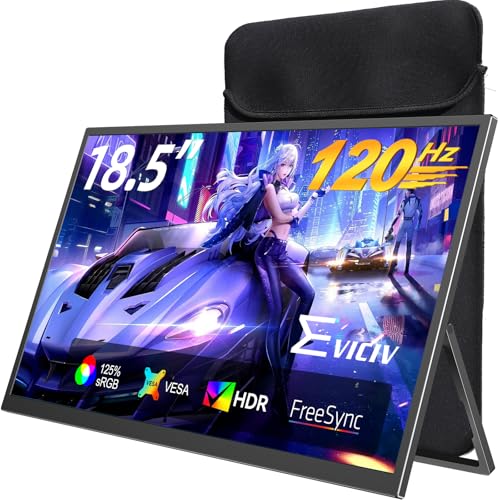
Budget Large Screen (FreeSync Wasted on Mac)
EVICIV Portable Monitor 18.5 Inch 120Hz, 125% sRGB FreeSync
Budget-conscious MacBook Pro users who want a large 120Hz screen and don't need premium color accuracy
Our take Check price for EVICIV Portable Monitor 18.5 Inch 120Hz, 125% sRGB FreeSync (opens in a new tab)

Best Budget Pick
cocopar Portable Monitor 15.6 Inch 1080P FHD 60Hz 85% sRGB
MacBook Pro users who want a basic, affordable second screen for chat and reference windows, not creative work
Our take Check price for cocopar Portable Monitor 15.6 Inch 1080P FHD 60Hz 85% sRGB (opens in a new tab)
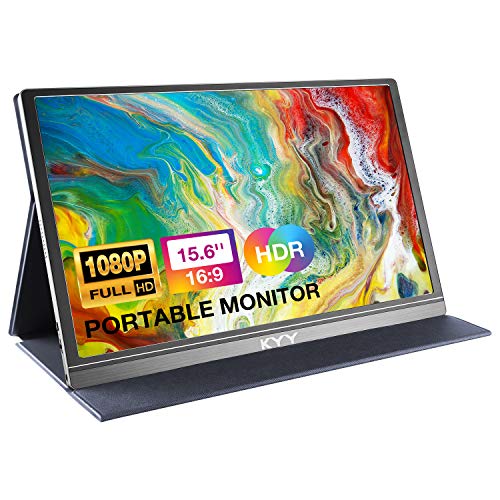
Most Reviewed
KYY Portable Monitor 15.6" 1080P Computer Monitor Screen Extender w/Cover
Budget-focused MacBook Pro owners who'll connect over USB-C and don't need VESA mounting
Our take Check price for KYY Portable Monitor 15.6" 1080P Computer Monitor Screen Extender w/Cover (opens in a new tab)
Our Picks
Best Overall for MacBook Pro1 of 8
cocopar Portable Monitor 16 Inch 2.5K QHD 110% sRGB 144Hz USB-C, 120Hz HDMI on Amazon (opens in a new tab)
5K (2560x1600) 16:10 panel that mirrors the MacBook Pro's own aspect ratio for full-screen use without black bars, plus a full metal chassis and dual VESA mounting holes for a permanent desk setup.
Best for
- MacBook Pro owners on any chip tier who want the closest aspect-ratio match and real VESA mounting without paying for 4K
Why we like it
The 110% SRGB gamut is a real step above budget 1080p panels, though it's still well short of the MacBook Pro's 100% P3/XDR coverage.
6 Inch 4K UHD 145% SRGB for one main reason. 16:10 ratio matches MacBook Pro's aspect ratio for clean full-screen use. 6 Inch 4K UHD 145% SRGB, which is worth weighing if cost is your deciding factor between the two.
On the other side, Uses one of your limited Thunderbolt ports.
Key dimensions & specs
- 16-inch 2.5K QHD (2560x1600), 16:10 ratio
- 110% SRGB, metal chassis
- Dual USB-C + full-size HDMI
- Dual VESA mounting holes
- 1.5 lb
Pros
- 16:10 ratio matches MacBook Pro's aspect ratio for clean full-screen use
- Full-size HDMI, not mini-HDMI
- Metal build with real VESA mount holes
Cons
- 110% SRGB is good but well short of the MacBook Pro's 100% P3 XDR coverage
- 144Hz claim is largely irrelevant since MacBook Pro's ProMotion tops out at 120Hz anyway
- Uses one of your limited Thunderbolt ports
Best for Color-Critical Work2 of 8
VisionOwl Portable Monitor 15.6 Inch 4K UHD 145% sRGB on Amazon (opens in a new tab)
This is the most color-capable pick in this guide, and the closest a budget-tier portable monitor gets to the MacBook Pro's own wide-gamut XDR display, with a 4K panel and a claimed 145% SRGB gamut.
Best for
- MacBook Pro owners doing color-sensitive photo or design work who want the closest available gamut match on a budget
Why we like it
It's still an 8-bit panel without HDR/XDR local dimming certification, so HDR content from a 14/16-inch mini-LED MacBook Pro will downgrade to SDR or render inaccurately here, don't expect an XDR-matching preview screen. 5K QHD 110% SRGB 144Hz USB-C. On the other side, Highest price in this guide.
Key dimensions & specs
- 15.6-inch 4K UHD, 145% SRGB claimed
- Full metal chassis, 75x75mm VESA
- USB-C + full-size HDMI
- Built-in kickstand
- Includes 2 USB-C cables + HDMI cable
Pros
- Highest color gamut claim in this guide
- 4K resolution for detail-critical review work
- Real VESA mount plus a sturdy metal kickstand
- Full-size HDMI included
Cons
- No real HDR/XDR certification despite 4K resolution, don't use for HDR grading decisions
- 4K over HDMI will cap at 30Hz, use USB-C/Thunderbolt for smooth 60Hz
- Highest price in this guide
Best 470-Nit Brightness3 of 8
VisionOwl Portable Monitor 16 Inch 2.5K QHD 144Hz, 470 Nits on Amazon (opens in a new tab)
At 470 nits this is the brightest panel in this guide, useful for a MacBook Pro user working near a bright window, and it pairs that with 8-bit+2FRC color processing for smoother gradients than a basic 6-bit panel.
Best for
- MacBook Pro users who regularly work near bright windows or outdoors and want the brightest available panel
Why we like it
The 16:10 ratio again matches MacBook Pro's own screen shape, and it ships with a full accessory kit including both a full-size HDMI cable and two USB-C cables.
6 Inch 4K UHD 145% SRGB.
Key dimensions & specs
- 16-inch 2.5K QHD, 144Hz, 470 nits
- 8-bit + 2FRC, 110% SRGB
- Full-size HDMI + dual USB-C
- Dual VESA holes, built-in kickstand
- 1.48 lb metal body
Pros
- Brightest panel in this guide at 470 nits
- Complete accessory kit included out of the box
- Full-size HDMI avoids adapter dependency
- 16:10 ratio matches MacBook Pro's screen shape
Cons
- 144Hz exceeds MacBook Pro's 120Hz ProMotion ceiling, no perceptible benefit
- 110% SRGB, not a P3/XDR gamut match
Best Large-Screen Budget Pick4 of 8
VisionOwl Portable Monitor for Laptop, 18.5 Inch FHD 100Hz on Amazon (opens in a new tab)
5 inches this is the largest screen at this price point in the guide, useful if your priority is raw screen real estate for spreadsheet or multi-window work rather than pixel density.
Best for
- MacBook Pro users who prioritize raw screen space for spreadsheets and multi-window work over pixel density
Why we like it
6-16-inch QHD picks above, text will look softer up close on this one.
On the other side, 100Hz, not a genuine ProMotion match.
Key dimensions & specs
- 18.5-inch FHD, 100Hz, 125% SRGB
- Full-size HDMI + dual USB-C
- 75x75mm VESA + built-in kickstand
- Metal back panel
- 2.7 lb
Pros
- Largest, most spacious screen in this guide
- Full-size HDMI, no adapter needed
- VESA mountable for a permanent setup
- Reasonably priced for the screen size
Cons
- Lower pixel density than the 15.6-16-inch QHD/4K picks
- 1080p will look visibly softer next to MacBook Pro's own Retina display
- 100Hz, not a genuine ProMotion match
Best Large 2K Screen5 of 8
cocopar Portable Monitor 18.5 Inch 2K QHD 120Hz 120% sRGB on Amazon (opens in a new tab)
5-inch large-screen footprint with a genuine 2K QHD resolution instead of 1080p stretched over the same size, giving noticeably sharper text and a 120% SRGB gamut that's a real step above budget panels.
Best for
- MacBook Pro users who want a large, sharp 2K screen and don't mind the extra travel weight
Why we like it
The 120Hz refresh rate happens to line up closely with MacBook Pro's own 120Hz ProMotion ceiling, making this one of the better refresh-rate matches in this guide rather than an overshoot like the 144Hz picks.
On the other side, Still short of MacBook Pro's P3/XDR gamut.
Key dimensions & specs
- 18.5-inch 2K QHD, 120Hz, 120% SRGB
- Full-size HDMI + dual USB-C
- 75x75mm VESA + adjustable kickstand
- 2.48 lb
- 500 nits brightness
Pros
- 2K resolution avoids the soft-text problem of 1080p-at-18.5-inch panels
- 120Hz is a close match to MacBook Pro's own ProMotion ceiling
- 120% SRGB, a genuine step up in color
- Full-size HDMI included
Cons
- Heaviest pick in this guide at 2.48 lb
- Higher price than the 15.6-inch alternatives
- Still short of MacBook Pro's P3/XDR gamut
Budget Large Screen (FreeSync Wasted on Mac)6 of 8
EVICIV Portable Monitor 18.5 Inch 120Hz, 125% sRGB FreeSync on Amazon (opens in a new tab)
Buy this for the 120Hz panel and 125% SRGB color, not for FreeSync, which won't do anything meaningful in a MacBook Pro setup.
Best for
- Budget-conscious MacBook Pro users who want a large 120Hz screen and don't need premium color accuracy
Why we like it
5 Inch 2K QHD 120Hz 120% SRGB.
On the other side, Lower rating than the VisionOwl/cocopar premium picks.
Key dimensions & specs
- 18.5-inch 120Hz, 125% SRGB, 1ms response
- FreeSync (not applicable to Mac use)
- 75x75mm VESA, 360° adjustable bracket
- Includes sleeve case
- 1ms response time
Pros
- Lowest price of the 18.5-inch picks
- 360° adjustable VESA bracket is unusually flexible for the price
- 120Hz keeps pace with MacBook Pro's ProMotion ceiling
Cons
- FreeSync marketing is irrelevant for MacBook Pro's Apple Silicon graphics
- 125% SRGB is decent but not verified against MacBook Pro's P3 coverage
- Lower rating than the VisionOwl/cocopar premium picks
Best Budget Pick7 of 8
cocopar Portable Monitor 15.6 Inch 1080P FHD 60Hz 85% sRGB on Amazon (opens in a new tab)
This is a simpler 1080p, 60Hz panel without the QHD/4K ambitions of the picks above, but it still includes a full-size HDMI port and real VESA mounting holes, features some pricier competitors skip.
Best for
- MacBook Pro users who want a basic, affordable second screen for chat and reference windows, not creative work
Why we like it
At 85% SRGB, color accuracy is noticeably behind the premium picks in this guide, fine for email and documents, less so for any color-sensitive MacBook Pro work.
The real tradeoff against that pick: 85% SRGB is the weakest color gamut of the picks in this guide.
6 inches is a visible step down from MacBook Pro's Retina display.
Key dimensions & specs
- 15.6-inch 1080P, 60Hz, 85% SRGB
- Full-size HDMI + dual USB-C
- 2 VESA mounting holes
- 1.5 lb without cover
- Smart stand case included
Pros
- Lowest price with a full-size HDMI port and real VESA holes
- Highest rating tier of the budget options here
- Simple, no-fuss 1080p panel for reference/chat windows
- Well under the price of the QHD/4K picks
Cons
- 85% SRGB is the weakest color gamut of the picks in this guide
- 60Hz only, no ProMotion-adjacent refresh rate
- 1080p at 15.6 inches is a visible step down from MacBook Pro's Retina display
Most Reviewed8 of 8
KYY Portable Monitor 15.6" 1080P Computer Monitor Screen Extender w/Cover on Amazon (opens in a new tab)
This is the most reviewed monitor in this guide by a wide margin, and the cheapest, but it uses mini-HDMI rather than full-size HDMI, so a Thunderbolt/USB-C connection to your MacBook Pro is the more reliable path (which nearly all MacBook Pro models support natively).
Best for
- Budget-focused MacBook Pro owners who'll connect over USB-C and don't need VESA mounting
Why we like it
No VESA mounting holes here either, it's a fold-out cover-stand design only.
6 Inch 1080P FHD 60Hz 85% SRGB.
On the other side, Cover-stand offers only two fixed viewing angles.
Key dimensions & specs
- 15.6-inch 1080P IPS, 178° viewing angle
- 2x USB-C + mini-HDMI
- Magnetic smart cover doubles as stand
- 1.7 lb, 0.3-inch profile
- No VESA mount
Pros
- Lowest price point
- USB-C connection works natively with all MacBook Pro Thunderbolt ports
- Slim and light for travel
Cons
- Mini-HDMI only, no full-size HDMI port
- No VESA mounting holes
- Cover-stand offers only two fixed viewing angles
How We Chose These Portable Monitors for MacBook Pro
Each pick was assessed across 5 criteria weighted for real-world use.
- Cross-checked which MacBook Pro chip tiers (base M1/M2 vs. Pro/Max, all generations) actually support a second external display without clamshell mode, since "MacBook Pro" alone doesn't guarantee dual-display support.
- Color gamut versus MacBook Pro's own P3/XDR screen
- Compared each panel's stated SRGB/DCI-P3 coverage against MacBook Pro's 100% P3 built-in display, rather than treating any "wide gamut" claim as equivalent.
- ) actually exceeds what MacBook Pro's own 120Hz ProMotion display runs at, since higher numbers don't add visible smoothness beyond that ceiling.
- HDMI port type and Thunderbolt port usage
- Distinguished full-size HDMI from mini-HDMI, and noted that any pick used over Thunderbolt/USB-C consumes one of the MacBook Pro's 2-3 available Thunderbolt ports.
- VESA mounting and stand design
- Verified genuine VESA mounting holes versus fold-out cover-stands only, since a permanent-desk MacBook Pro setup benefits from real monitor-arm compatibility.
What to Look for in a Portable Monitor for MacBook Pro
Key buying criteria so you get the right fit the first time.
Check the refresh rate ceiling for each port separately, not just the headline spec
0's bandwidth can't sustain the same data throughput as USB-C at higher resolutions.
This is a common source of buyer disappointment: someone buys a monitor rated 144Hz specifically to pair with a game console over HDMI, only to discover the HDMI port caps at 120Hz or even 60Hz on that specific model, a distinction the headline spec doesn't disclose.
Check the listing specifically for per-port refresh rate figures (USB-C rate versus HDMI rate stated separately), and match the port you'll actually use to the rate you actually need, not the single highest number in the title.
Confirm your specific source device can actually output above 60Hz before paying extra for a high refresh panel
A monitor's refresh rate capability is meaningless if the connected source device can't output a signal above 60Hz in the first place, and this is a common mismatch: many laptop USB-C ports are data-only or video-limited to 60Hz regardless of Thunderbolt or USB4 branding, and handheld gaming PCs like Steam Deck and ROG Ally specifically output capped at 60Hz over USB-C in their current hardware generation, making a 144Hz-rated monitor's extra capability completely unused for that pairing despite the higher price paid for it.
Before buying specifically for the refresh rate, check your exact source device's documented maximum output refresh rate over the connection type you'll actually use (not just its general spec sheet), since a monitor's rated capability and your source device's actual output are two entirely separate specifications that both need to support the higher rate.
Understand that response time (GtG) affects visible motion clarity as much as refresh rate does
Refresh rate (how many times per second the image updates) and response time (how quickly individual pixels can change color, commonly measured in milliseconds as gray-to-gray or GtG) are two separate specs that both affect how smooth and clear fast motion looks, and a high refresh rate paired with a slow response time still produces visible ghosting or blur trailing behind fast-moving objects, since the panel can't physically change pixel colors fast enough to keep up with the higher refresh rate's demands.
This matters because response time is disclosed far less consistently than refresh rate across portable monitor listings, many simply omit it entirely, making direct comparison difficult even when two panels share the same headline refresh number.
Check specifically for a stated GtG response time in milliseconds, and treat a high refresh rate spec with some skepticism if the listing doesn't also disclose response time, since the refresh number alone doesn't guarantee smooth-looking motion.
Check power delivery and cable requirements, since a portable monitor's convenience depends on how it's actually powered
Portable monitors typically draw power either through the same USB-C cable carrying the video signal (single-cable operation, the more convenient setup) or through a separate dedicated power input, and some models support pass-through charging that lets your laptop's own charger power both the laptop and the monitor simultaneously through one connection.
This matters concretely for actual portability: a monitor requiring two separate cables (one for video, one for power) is meaningfully less convenient to set up and pack away than genuine single-cable operation, undermining part of the appeal of a "portable" monitor in the first place.
Check specifically whether the monitor supports single-cable USB-C operation with your source device, and confirm pass-through charging wattage if you want your laptop's charger to power both devices without needing two outlets.
Weigh review volume against star rating, since this category includes both established models and many newer, similar-looking entrants
Portable monitors from well-established sellers with years of accumulated sales carry review counts in the thousands, giving genuine statistical confidence in panel quality and long-term reliability, while newer listings, sometimes from the same manufacturer under a different model number or from less established brands entirely, can carry only a handful of reviews despite looking similarly specified and priced.
When comparing two similarly specified and priced portable monitors, check both the star rating and the review count together, and treat a very small review count as a reason for extra caution even if the rating itself looks strong.
How to Choose a Portable Monitor for MacBook Pro
| Recommended pick in this comparison | |
|---|---|
| 6 Inch 1080P FHD 60Hz 85% SRGB | |
| 6" 1080P Computer Monitor Screen Extender w/Cover | |
| No firm budget ceiling, prioritizing panel quality or resolution | 6 Inch 4K UHD 145% SRGB |
USB-C DisplayPort Alt Mode vs HDMI
- Usually the port that hits the panel's full rated refresh rate, and can carry power alongside video on one cable. In this comparison: check each listing's stated USB-C refresh rate directly.
- Reliable for consoles and older sources, but often capped below the panel's full rated refresh, especially at higher resolutions. 5K QHD 110% SRGB 144Hz USB-C.
If you're connecting a console or HDMI-only source specifically, verify the actual HDMI refresh ceiling on your chosen pick, since several picks here cap lower over HDMI than their headline spec suggests.
| Want a permanent mounted setup | 5K QHD 110% SRGB 144Hz USB-C |
|---|---|
| Prefer the included kickstand or case | 5K QHD 110% SRGB 144Hz USB-C |
For a Handheld Gaming PC or Console Specifically
- Your exact source device's documented maximum output refresh rate over the connection type you'll use, checked independently from the monitor's own rated capability, since handhelds like Steam Deck and ROG Ally commonly cap at 60Hz over USB-C.
- 6 Inch 4K UHD 145% SRGB fits this specifically: Highest color gamut claim in this guide.
- 6 Inch 4K UHD 145% SRGB offers: Highest color gamut claim in this guide. That's a real functional upgrade over the budget picks here, not just a brand markup.
- The main thing you'd be paying extra for elsewhere in this list is headroom you may not actually use.
Frequently Asked Questions
Does my MacBook Pro support two external displays?
Only if it has a Pro or Max chip tier (M1 Pro/Max through M4 Pro/Max), those support two external displays without clamshell mode. Base M1/M2 13-inch MacBook Pro supports only one external display total.
Can any of these monitors match my MacBook Pro's XDR display color?
6" 4K pick (rank 2) with its 145% SRGB claim comes closest, but none of these panels carry real HDR/XDR certification, so treat all of them as good-enough, not equivalent, for color-critical work.
Should I buy a 144Hz portable monitor for my MacBook Pro?
It won't hurt, but it won't help either. MacBook Pro's own ProMotion display adapts up to 120Hz, so a 144Hz-rated external monitor driven from your Mac won't look any smoother than a 120Hz one.
Does using a portable monitor use up a Thunderbolt port I need for other things?
MacBook Pro 14/16-inch models have only 2-3 Thunderbolt 4 ports total, and connecting a portable monitor uses one of them, worth planning around if you also run a dock, EGPU, or fast external SSD.
Which pick has a full-size HDMI port instead of mini-HDMI?
6" (rank 8) use full-size HDMI. The KYY uses mini-HDMI and requires its included cable or your own adapter.
Can I mount any of these on a monitor arm at my desk?
Most picks in this guide have real VESA mounting holes (75x75mm on several models), letting you attach them to a standard monitor arm instead of relying on a fold-out cover-stand.
Bottom Line
Best overall: cocopar Portable Monitor 16 Inch 2.5K QHD 110% sRGB 144Hz USB-C, 120Hz HDMI — best overall for macbook pro pick in this roundup. See the full verdicts above for every pick, with pros, cons and who each one suits.
Browse all portable monitors for macbook pro on Amazon — Prime-eligible options with current pricing.