
Buying Guide
The Best Docking Stations for MacBook Air, Matched to Your Chip
By Jamie Cole, Lead Product Researcher
10 min read8 products evaluated
We may earn a commission from purchases made through links in this guide. Learn more.
With a MacBook Air, the chip decides more than the dock. M1 and M2 Airs support one external display natively. The M3 Air supports two only with the lid closed, and the M4 Air supports two with the lid open. A dock cannot change that, unless it uses DisplayLink, which sends extra displays through software and a driver.
That makes the first question how many monitors you want. For one monitor, a simple USB-C hub is enough. For two or three on an older Air, you need a DisplayLink dock, with its trade-offs: a driver to install, some processor load, and output that is less suited to color-critical work. Hubs that list dual HDMI without DisplayLink generally show the same image on both screens on macOS.
Our comparison is based on published specifications, Apple's published display support and price position, not hands-on testing. Prices range from about $40 to $200 at the time of writing.
Quick Picks
Our 8 recommendations at a glance. Tap a pick for the full verdict.

Best Thunderbolt Dock for M4 and Newer
Plugable Thunderbolt 4 Dock for M4/M5 MacBook Air & Pro (TBT-UDM)
A Thunderbolt 4-certified dock with 100W charging, six USB ports, SD and Ethernet.
Best for: M4 or newer Air owners who want native dual displays and a full desk dock.
Our take Check price for Plugable Thunderbolt 4 Dock for M4/M5 MacBook Air & Pro (TBT-UDM) (opens in a new tab)

Best DisplayLink Dock for Dual Monitors
TobenONE 18-in-2 Docking Station Dual Monitor for MacBook Pro/Air
A DisplayLink dock for two 4K 60Hz displays, with a 150W adapter and 2.5G Ethernet.
Best for: M1–M3 Air owners who need two monitors with the lid open.
Our take Check price for TobenONE 18-in-2 Docking Station Dual Monitor for MacBook Pro/Air (opens in a new tab)

Best Budget DisplayLink Dock
PULWTOP MacBook Pro Docking Station Dual Monitor 4K@60Hz
Dual HDMI at 4K 60Hz via DisplayLink, with Ethernet and a card reader, for about $70.
Best for: Budget buyers with an M1–M3 Air who need two monitors.
Our take Check price for PULWTOP MacBook Pro Docking Station Dual Monitor 4K@60Hz (opens in a new tab)
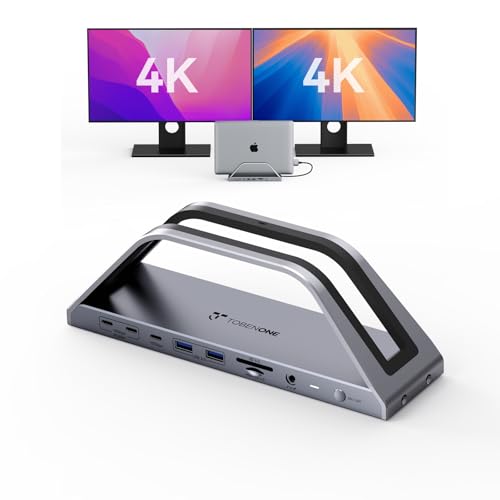
Best for Shared Desks
TobenONE 17-IN-2 Macbook Docking Station Dual 4K Monitor
A DisplayLink dual-4K dock listed for M1 to M5 Macs, with a 150W charger and 2.5G Ethernet.
Best for: Desks shared by several MacBooks of different generations.
Our take Check price for TobenONE 17-IN-2 Macbook Docking Station Dual 4K Monitor (opens in a new tab)
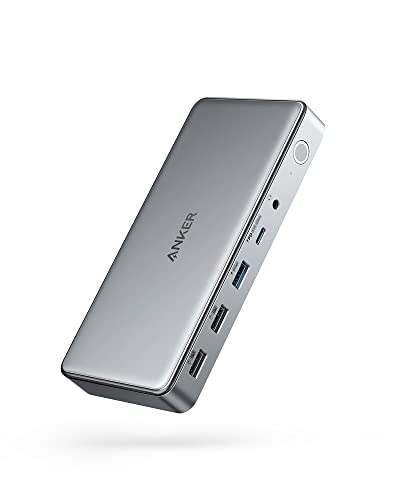
Best for Three Monitors
Anker Docking Station DL6350, 10-Port Triple Display with DisplayLink
A DisplayLink dock for three displays, with dual HDMI and DisplayPort.
Best for: Air owners who need three monitors.
Our take Check price for Anker Docking Station DL6350, 10-Port Triple Display with DisplayLink (opens in a new tab)

Budget Hub (Check Dual-Display Support)
Anker Laptop Docking Station Dual Monitor, 8-in-1 USB C Hub
An 8-in-1 hub with dual HDMI, 85W pass-through, Ethernet and SD; charger not included.
Best for: Air owners who want one monitor plus Ethernet and SD.
Our take Check price for Anker Laptop Docking Station Dual Monitor, 8-in-1 USB C Hub (opens in a new tab)

Best for Higher-Resolution Monitors
WAVLINK USB C Docking Station Dual Monitor, Dual 5K/4K@60Hz
A DisplayLink dock for two displays up to 5K, with HDMI and DisplayPort and 130W charging.
Best for: Air owners with higher-resolution monitors who need two displays.
Our take Check price for WAVLINK USB C Docking Station Dual Monitor, Dual 5K/4K@60Hz (opens in a new tab)

Best Compact Hub for One Monitor
UGREEN 10-in-1 USB C Docking Station, Revodok Pro 210
A compact 10-in-1 USB-C hub with 100W pass-through, Ethernet and a card reader for about $40.
Best for: Travel or a one-monitor desk.
Our take Check price for UGREEN 10-in-1 USB C Docking Station, Revodok Pro 210 (opens in a new tab)
Our Picks
Best Thunderbolt Dock for M4 and Newer1 of 8
Plugable Thunderbolt 4 Dock for M4/M5 MacBook Air & Pro (TBT-UDM) on Amazon (opens in a new tab)
The Plugable TBT-UDM is the dock for a newer Air that can drive displays natively: a Thunderbolt 4-certified dock that Plugable lists for M4 and M5 MacBooks, supporting two 4K HDMI monitors or a single 6K display without drivers.
Best for
- M4 or newer Air owners who want native dual displays and a full desk dock.
Skip if
- You have an M1 or M2 Air and want two monitors; you need a DisplayLink dock.
Why we like it
It adds 100W charging, which is far more than an Air needs but leaves headroom for other devices, plus six USB ports, an SD slot and Ethernet.
On an M1 or M2 Air it will still drive only one external display, and it costs about $200 at the time of writing.
Key dimensions & specs
- Thunderbolt 4 certified, 40Gbps
- Displays: 2 x 4K HDMI or 1 x 6K (on supported Macs)
- Charging: 100W
- USB: 6 ports; SD; Ethernet
- Driverless
Pros
- Native displays, no driver
- Certified Thunderbolt
- Full port selection
Cons
- Expensive
- Only one external display on M1/M2 Airs
Best DisplayLink Dock for Dual Monitors2 of 8
TobenONE 18-in-2 Docking Station Dual Monitor for MacBook Pro/Air on Amazon (opens in a new tab)
The TobenONE 18-in-2 is the pick for M1, M2 or M3 Air owners who want two monitors with the lid open: it uses DisplayLink to add a second 4K 60Hz display beyond the chip's native limit.
Best for
- M1–M3 Air owners who need two monitors with the lid open.
Skip if
- You have an M4 or newer Air; a Thunderbolt dock drives two displays natively.
Why we like it
It includes a 150W power adapter, 2.5G Ethernet, 10Gbps USB-C, seven USB ports and an SD 4.0 reader, which makes it a full desk hub.
DisplayLink needs a driver, adds some processor load, and is less suited to color-critical editing. It is bulkier than a single-cable hub.
Key dimensions & specs
- Displays: dual 4K 60Hz (DisplayLink)
- Power adapter: 150W
- 2.5G Ethernet, 10Gbps USB-C
- USB: 7 ports
- SD 4.0 reader
Pros
- Two monitors on any Air
- 2.5G Ethernet
- Power adapter included
Cons
- DisplayLink driver and processor load
- Not ideal for color-critical work
- Bulky
Best Budget DisplayLink Dock3 of 8
PULWTOP MacBook Pro Docking Station Dual Monitor 4K@60Hz on Amazon (opens in a new tab)
The PULWTOP is the budget route to two monitors on an older Air: dual HDMI outputs at 4K 60Hz via DisplayLink, for about $70 at the time of writing.
Best for
- Budget buyers with an M1–M3 Air who need two monitors.
Skip if
- You want 2.5G Ethernet and more ports; the TobenONE 18-in-2 has them.
Why we like it
It adds 10Gbps USB-A and USB-C, an SD/TF slot, Ethernet and power pass-through.
It has fewer ports than the TobenONE docks, a plastic build, and the usual DisplayLink trade-offs.
Key dimensions & specs
- Displays: dual HDMI 4K 60Hz (DisplayLink)
- 10Gbps USB-A/C
- SD/TF slot
- Ethernet
- Power pass-through
Pros
- Lowest-cost DisplayLink dock here
- Dual HDMI
- Ethernet and card reader
Cons
- Fewer ports
- Plastic build
- DisplayLink driver and processor load
Best for Shared Desks4 of 8
TobenONE 17-IN-2 Macbook Docking Station Dual 4K Monitor on Amazon (opens in a new tab)
The TobenONE 17-in-2 is a close sibling of the 18-in-2, listed for Macs from M1 to M5, which suits a shared desk where different MacBooks connect.
Best for
- Desks shared by several MacBooks of different generations.
Skip if
- Only one Mac uses the desk; the 18-in-2 is similar for less.
Why we like it
It includes a 150W charger, seven USB ports at up to 10Gbps and 2.5G Ethernet, with dual 4K displays via DisplayLink.
It costs about $10 more than the 18-in-2 at the time of writing and is close in price to the Thunderbolt Plugable. The DisplayLink trade-offs apply.
Key dimensions & specs
- Displays: dual 4K (DisplayLink)
- Charger: 150W
- USB: 7 ports, up to 10Gbps
- 2.5G Ethernet
- Listed for M1–M5 Macs
Pros
- Wide Mac compatibility
- 2.5G Ethernet
- Charger included
Cons
- Costs more than the 18-in-2
- DisplayLink trade-offs
- Large footprint
Best for Three Monitors5 of 8
Anker Docking Station DL6350, 10-Port Triple Display with DisplayLink on Amazon (opens in a new tab)
The Anker DL6350 is the only dock here for three external monitors, which no MacBook Air can drive natively; it does this through DisplayLink.
Best for
- Air owners who need three monitors.
Skip if
- Two monitors are enough; the TobenONE or PULWTOP cost less.
Why we like it
It offers two HDMI outputs and a DisplayPort, 10 ports in total, and works with Windows as well as macOS. Anker is an established name for DisplayLink docks.
It is the most expensive dock here at the time of writing, three DisplayLink displays add more processor load, and the output is not ideal for color-critical work.
Key dimensions & specs
- Displays: 3 (DisplayLink)
- Outputs: 2 x HDMI, 1 x DisplayPort
- Ports: 10
- macOS and Windows
Pros
- Three external displays
- Mixed HDMI and DisplayPort
- Established brand
Cons
- Most expensive here
- More processor load
- Not for color-critical work
Budget Hub (Check Dual-Display Support)6 of 8
Anker Laptop Docking Station Dual Monitor, 8-in-1 USB C Hub on Amazon (opens in a new tab)
The Anker 8-in-1 is an inexpensive hub with two HDMI outputs, 85W power pass-through, gigabit Ethernet and an SD reader, for about $54 at the time of writing.
Best for
- Air owners who want one monitor plus Ethernet and SD.
Skip if
- You need two separate monitors; choose a DisplayLink dock.
Why we like it
The listing does not state that it uses DisplayLink. Without DisplayLink, a MacBook Air generally cannot show different content on two monitors through a hub like this, so on macOS treat it as a one-monitor hub unless Anker confirms otherwise.
The power adapter is sold separately.
Key dimensions & specs
- Outputs: 2 x HDMI (4K)
- Power pass-through: 85W
- Gigabit Ethernet
- SD reader
- Charger not included
Pros
- Low price
- Ethernet and SD
- 85W pass-through
Cons
- Dual extended displays on a Mac not confirmed
- Charger sold separately
Best for Higher-Resolution Monitors7 of 8
WAVLINK USB C Docking Station Dual Monitor, Dual 5K/4K@60Hz on Amazon (opens in a new tab)
The WAVLINK 13-in-1 is the DisplayLink dock for sharper monitors: it lists dual displays up to 5K, with two HDMI and two DisplayPort outputs so you can match your monitors' inputs.
Best for
- Air owners with higher-resolution monitors who need two displays.
Skip if
- Your monitors are 4K or lower; the TobenONE or PULWTOP cost less.
Why we like it
It adds 130W power delivery, five USB ports and audio, and is listed for M1 to M4 Macs and Windows.
DisplayLink trade-offs apply, and it costs more than the budget dual-display docks.
Key dimensions & specs
- Displays: dual up to 5K (DisplayLink)
- Outputs: 2 x HDMI, 2 x DisplayPort
- Power delivery: 130W
- USB: 5 ports; audio
- Listed for M1–M4 Macs, Windows
Pros
- Up to 5K
- HDMI and DisplayPort
- 130W charging
Cons
- DisplayLink trade-offs
- Large footprint
- Costs more than budget docks
Best Compact Hub for One Monitor8 of 8
UGREEN 10-in-1 USB C Docking Station, Revodok Pro 210 on Amazon (opens in a new tab)
The UGREEN Revodok Pro 210 is the small, inexpensive choice for a single external monitor: a 10-in-1 USB-C hub with HDMI, 100W power pass-through, 5Gbps data, gigabit Ethernet and an SD/TF reader.
Best for
- Travel or a one-monitor desk.
Skip if
- You need two monitors; choose a DisplayLink dock.
Why we like it
It is easy to carry and suits travel or a minimal desk.
UGREEN lists dual HDMI, but it is a USB-C hub rather than a DisplayLink or Thunderbolt dock, so on a MacBook Air expect one extended display; a second screen will generally mirror the first.
Key dimensions & specs
- Display: HDMI up to 4K 60Hz (one extended display on Macs)
- Power pass-through: 100W
- 5Gbps USB-C/A
- Gigabit Ethernet, SD/TF reader
- Compact
Pros
- Lowest price here
- Compact
- Ethernet and card reader
Cons
- One extended display on a Mac
- 5Gbps data
How We Chose These MacBook Air Docks
Each pick was assessed across 4 criteria weighted for real-world use.
- Display method
- We separated DisplayLink docks from Thunderbolt and USB-C hubs and compared them with Apple's published display limits for each Air chip.
- Charging
- We recorded power delivery and whether a charger is included.
- Ports
- We compared USB count and speed, Ethernet and card readers.
- Price position
- Prices change often, so we treat them as relative position.
What to Look for in a MacBook Air Dock
Key buying criteria so you get the right fit the first time.
Your Air's display support
M1 and M2: one external display. M3: two with the lid closed. M4: two with the lid open. More than that requires DisplayLink.
DisplayLink or native
DisplayLink docks (TobenONE, PULWTOP, Anker DL6350, WAVLINK) add displays via a driver, with some processor load and less color accuracy. Thunderbolt and USB-C hubs drive displays natively, within your chip's limit.
Dual HDMI on a hub
macOS generally mirrors rather than extends across two outputs on a basic USB-C hub. Do not rely on a hub's dual HDMI for two separate screens unless it uses DisplayLink.
Charging
An Air needs far less than 100W; extra wattage helps charge other devices. Some hubs need your own charger; the TobenONE docks include one.
Ports and Ethernet
2.5G Ethernet (TobenONE) only helps on a faster network. Check card reader and USB speed if you move large files.
How to Choose a MacBook Air Dock
By your Mac and monitors
| Situation | Consider | Why |
|---|---|---|
| One monitor, any Air | UGREEN Revodok Pro 210 or Anker 8-in-1 | Inexpensive hubs |
| Two monitors, M4 or newer | Plugable TBT-UDM | Native Thunderbolt dual display |
| Two monitors, M1–M3, lid open | TobenONE 18-in-2 or PULWTOP | DisplayLink |
| Two high-resolution monitors | WAVLINK 13-in-1 | Up to 5K, HDMI and DP |
| Several Macs share a desk | TobenONE 17-in-2 | Listed for M1–M5 |
| Three monitors | Anker DL6350 | Triple DisplayLink |
Scroll sideways to see every column.
By price at the time of writing
Prices change frequently; these tiers reflect typical prices when this guide was updated.
| Price tier | Docks |
|---|---|
| About $40–$70 | UGREEN Revodok Pro 210, Anker 8-in-1, PULWTOP |
| About $150–$166 | TobenONE 18-in-2, TobenONE 17-in-2, WAVLINK |
| About $200 | Plugable TBT-UDM, Anker DL6350 |
Frequently Asked Questions
Can any dock give my MacBook Air two external displays?
On an M1 or M2 Air, only a DisplayLink dock can. An M3 Air supports two natively with the lid closed, and an M4 Air with the lid open.
Do I need a 100W dock for a MacBook Air?
No. The Air draws much less. Extra wattage only helps if you charge other devices through the dock.
Why does my Air slow down when docked?
The Air has no fan, so heavy sustained loads, including driving several DisplayLink displays, can lead it to reduce performance to manage heat. Reducing the number of displays may help.
Is a Thunderbolt dock better than a USB-C hub?
For one monitor and basic ports, a hub is enough. A Thunderbolt dock offers more bandwidth and, on M4 or newer Airs, native dual displays.
Can I charge through MagSafe while docked?
Yes. Using MagSafe for power leaves the USB-C port connected to the dock for data and display.
Which dock supports three monitors?
The Anker DL6350, using DisplayLink.
Bottom Line
Start with your chip. For one monitor, the UGREEN Revodok Pro 210 is the compact, inexpensive choice. On an M4 or newer Air, the Plugable Thunderbolt dock drives two monitors natively with no driver.
On an M1 to M3 Air with the lid open, two monitors need DisplayLink: the PULWTOP is the budget option, the TobenONE 18-in-2 the fuller dock with 2.5G Ethernet, and the WAVLINK the choice for 5K monitors. The Anker DL6350 is the only route to three.