
Buying Guide
The Best Docking Stations for Chromebooks, Matched to What ChromeOS Can Drive
We compared Chromebook docks on how they drive extra monitors (native USB-C output or DisplayLink), charging wattage, ports and ChromeOS support, from an 8-in-1 hub to a certified 12-in-1 dock.
By Jamie Cole, Lead Product Researcher
9 min read8 products evaluated
We may earn a commission from purchases made through links in this guide. Learn more.
The limit on a Chromebook dock is usually the Chromebook, not the dock. How many external monitors you can run depends on what the laptop's USB-C or Thunderbolt port supports, and many Chromebooks are more limited here than a typical Windows laptop. A dock with five video outputs cannot add displays the laptop itself cannot drive, unless it uses DisplayLink, which renders extra screens through software.
That makes the first question how a dock drives its monitors. Docks that use the laptop's native output need no software but depend on the laptop; DisplayLink docks need the DisplayLink extension on ChromeOS but can add screens beyond the native limit. Charging is simpler: check the dock's power delivery against your Chromebook's charger rather than paying for wattage you will not use.
The eight docks below run from about $45 to $170 at the time of writing. Our comparison is based on published specifications, listed OS compatibility, charging wattage and price position, not hands-on testing. Check your Chromebook maker's documentation for its supported number of external displays before buying any multi-monitor dock.
Quick Picks
Our 8 recommendations at a glance. Tap a pick for the full verdict.
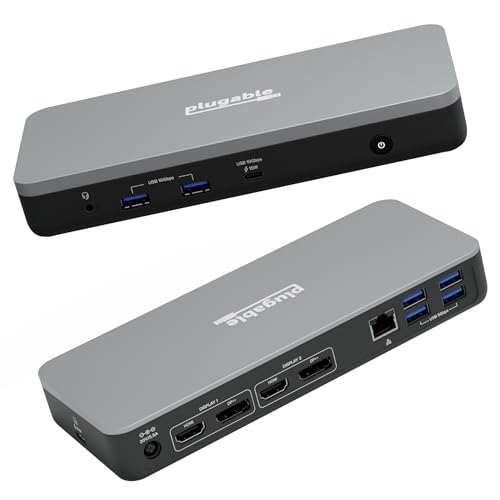
Best Chromebook-Certified Dock
Plugable 12-in-1 Dual 4K USB-C Docking Station (Chromebook Certified)
The only dock here listed as Chromebook certified, with DisplayLink for two 4K monitors.
Best for: A Chromebook that needs two external monitors with the least compatibility guesswork.
Our take Check price for Plugable 12-in-1 Dual 4K USB-C Docking Station (Chromebook Certified) (opens in a new tab)

Best for Three Screens at 1080p
Plugable USB-C Triple Display Docking Station
Three HDMI outputs, six USB ports and 100W charging, with ChromeOS listed.
Best for: Three screens for documents, email and dashboards where 1080p is enough.
Our take Check price for Plugable USB-C Triple Display Docking Station (opens in a new tab)

Best Driverless Dual-Monitor Dock
Plugable USB-C Docking Station Dual Monitor 4K 60Hz (UD-MSTH2)
Dual 4K 60Hz over HDMI with no driver install, if your Chromebook supports it natively.
Best for: A Chromebook documented to support two external displays, where a driver-free setup matters.
Our take Check price for Plugable USB-C Docking Station Dual Monitor 4K 60Hz (UD-MSTH2) (opens in a new tab)

Best for Mixed-Laptop Households
Anker Prime Docking Station, 14-Port with 160W Max Output
A 14-port dock with 160W total output and a status screen, for a desk shared with a bigger laptop.
Best for: A desk shared by a Chromebook and a higher-power Windows or Mac laptop.
Our take Check price for Anker Prime Docking Station, 14-Port with 160W Max Output (opens in a new tab)

Best Compact Hub
Anker Laptop Docking Station Dual Monitor, 8-in-1 USB C Hub
An 8-in-1 hub with two HDMI ports, Ethernet, an SD reader and 85W passthrough.
Best for: A Chromebook with one external monitor that needs Ethernet, USB and an SD reader.
Our take Check price for Anker Laptop Docking Station Dual Monitor, 8-in-1 USB C Hub (opens in a new tab)

Best Budget Port Count
USB C Laptop Docking Station Dual Monitor HDMI, 14-in-1 USB C Hub
The lowest price here, with 14 ports including dual HDMI, DisplayPort and SD/TF.
Best for: A budget Chromebook desk that needs many ports and knows its display limits.
Our take Check price for USB C Laptop Docking Station Dual Monitor HDMI, 14-in-1 USB C Hub (opens in a new tab)

Best for Mixed Hosts With Three Screens
Selore Laptop Docking Station 3 Monitors, Triple 4K Display
Five video outputs, 100W PD and a small info display, for desks that also host a Windows laptop.
Best for: A shared desk where a Windows or Mac laptop also needs three monitors.
Our take Check price for Selore Laptop Docking Station 3 Monitors, Triple 4K Display (opens in a new tab)

Alternative Triple-Output Dock
MOKiN USB C Docking Station 3 Monitors, Triple Display
A near match for the Selore's specifications at a slightly higher price.
Best for: Anyone who wants the Selore's layout when the Selore is unavailable.
Our take Check price for MOKiN USB C Docking Station 3 Monitors, Triple Display (opens in a new tab)
Our Picks
Best Chromebook-Certified Dock1 of 8
Plugable 12-in-1 Dual 4K USB-C Docking Station (Chromebook Certified) on Amazon (opens in a new tab)
The Plugable 12-in-1 is the safest starting point if two external monitors on a Chromebook is the goal: it is the only dock here that Plugable lists as Chromebook certified, and its dual 4K output uses DisplayLink rather than depending on the laptop's native display support alone.
Best for
- A Chromebook that needs two external monitors with the least compatibility guesswork.
Skip if
- You only need one external monitor; the Anker 8-in-1 or the unbranded 14-in-1 hub covers that for far less.
Why we like it
That matters on Chromebooks limited to one external display over USB-C, where DisplayLink is the practical route to a second screen. The cost is a setup step: you need the DisplayLink extension for ChromeOS installed. The 12-port layout and built-in Ethernet suit a shared or classroom desk.
Its 60W charging is the lowest rating here; check it against your Chromebook's charger.
Key dimensions & specs
- Displays: dual 4K via DisplayLink
- Charging: 60W
- Ports: 12-in-1 including Ethernet
- Listed compatibility: Chromebook certified; Windows, ChromeOS
Pros
- Only Chromebook-certified dock in this guide
- DisplayLink can add a second screen beyond native limits
- Ethernet and a broad port mix
Cons
- Needs the DisplayLink extension installed
- 60W is the lowest charging rating here
- Costs more than the budget hubs
Best for Three Screens at 1080p2 of 8
Plugable USB-C Triple Display Docking Station on Amazon (opens in a new tab)
The Plugable Triple Display dock suits a Chromebook desk that wants three screens for documents and dashboards rather than three 4K panels: its HDMI outputs are listed as one 4K at 30Hz and two 1080p at 60Hz.
Best for
- Three screens for documents, email and dashboards where 1080p is enough.
Skip if
- You want two sharp 4K monitors; the Plugable 12-in-1 or UD-MSTH2 is the better fit.
Why we like it
It adds six USB 5Gbps ports and 100W power delivery, and Plugable lists Windows, macOS and ChromeOS compatibility. The previous version of this guide positioned it as a Thunderbolt dock, but the listing describes a USB-C dock, and it does not state how it reaches three outputs on ChromeOS, so check Plugable's notes for your model.
The 4K output runs at 30Hz, which can feel sluggish for scrolling and mouse movement.
Key dimensions & specs
- Displays: 3x HDMI (1x 4K 30Hz, 2x 1080p 60Hz)
- Charging: 100W USB-C PD
- USB: 6x 5Gbps
- Listed compatibility: Windows, macOS, ChromeOS
Pros
- Three HDMI outputs
- Six USB ports
- 100W charging covers typical Chromebook chargers
Cons
- 4K output limited to 30Hz
- Two outputs are 1080p only
- Display method on ChromeOS not stated in the listing
Best Driverless Dual-Monitor Dock3 of 8
Plugable USB-C Docking Station Dual Monitor 4K 60Hz (UD-MSTH2) on Amazon (opens in a new tab)
The Plugable UD-MSTH2 is the choice if you want two 4K 60Hz monitors without installing an extension, and your Chromebook's documentation confirms it supports two external displays natively.
Best for
- A Chromebook documented to support two external displays, where a driver-free setup matters.
Skip if
- Your Chromebook supports only one external display; a DisplayLink dock such as the Plugable 12-in-1 is the better fit.
Why we like it
Plugable lists it as driverless on Windows and ChromeOS, with dual HDMI 4K 60Hz, 65W charging, Gigabit Ethernet and three USB-A 5Gbps ports plus USB-C. Because it relies on the laptop's own display output rather than DisplayLink, it cannot add a second screen to a Chromebook limited to one.
That is the key difference from the certified 12-in-1: less setup, but less help when the laptop is the bottleneck.
Key dimensions & specs
- Displays: 2x HDMI, 4K 60Hz
- Charging: 65W
- Ethernet: Gigabit
- USB: USB-C + 3x USB-A 5Gbps
- Driverless on Windows and ChromeOS (listed)
Pros
- No driver or extension needed
- 4K 60Hz on both outputs where supported
- Costs less than the certified dock
Cons
- Second display depends on the Chromebook's native support
- Not listed as Chromebook certified
- Fewer ports than the 12-in-1
Best for Mixed-Laptop Households4 of 8
Anker Prime Docking Station, 14-Port with 160W Max Output on Amazon (opens in a new tab)
The Anker Prime makes sense when the same dock serves a Chromebook and a more power-hungry Windows or Mac laptop: its 160W maximum output is far beyond what a Chromebook needs, but it leaves room for the other machine and connected devices.
Best for
- A desk shared by a Chromebook and a higher-power Windows or Mac laptop.
Skip if
- Only a Chromebook will use it; the Plugable UD-MSTH2 or 12-in-1 costs less for the same monitor count.
Why we like it
It lists 14 ports, dual 4K display support and 10Gbps data, and its built-in status screen shows connection details, which may help when working out whether a display problem is the dock or the laptop.
For a Chromebook-only desk it is the most expensive dock here, and most of its power headroom would go unused.
Key dimensions & specs
- Ports: 14
- Output: 160W max
- Data: 10Gbps
- Displays: dual 4K
- Built-in status display
Pros
- Power headroom for a larger laptop on the same desk
- Status screen for troubleshooting
- 10Gbps data
Cons
- Most expensive dock here
- Power headroom mostly unused by a Chromebook
- Dual display still depends on the host's support
Best Compact Hub5 of 8
Anker Laptop Docking Station Dual Monitor, 8-in-1 USB C Hub on Amazon (opens in a new tab)
The Anker 8-in-1 is the sensible buy for a Chromebook that already drives one external monitor well and mainly needs ports: two HDMI outputs, Gigabit Ethernet, USB-A and an SD card reader in a compact hub.
Best for
- A Chromebook with one external monitor that needs Ethernet, USB and an SD reader.
Skip if
- You need a second monitor on a Chromebook limited to one; the Plugable 12-in-1 is the better fit.
Why we like it
It lists 85W passthrough charging, though you supply the USB-C charger yourself. There is no DisplayLink chip, so the second HDMI port only adds a monitor if your Chromebook supports two external displays natively.
The unbranded 14-in-1 costs a little less at the time of writing and has more ports, but Anker is the more established brand.
Key dimensions & specs
- Type: 8-in-1 USB-C hub
- Displays: 2x HDMI (host-dependent)
- Charging: 85W passthrough
- Ethernet: 1Gbps
- SD card reader
Pros
- Compact, simple port set
- SD card reader and Ethernet
- 85W passthrough
Cons
- Second display depends on the Chromebook's native support
- No DisplayLink
- Charger not included
Best Budget Port Count6 of 8
USB C Laptop Docking Station Dual Monitor HDMI, 14-in-1 USB C Hub on Amazon (opens in a new tab)
The unbranded 14-in-1 is the lowest-priced dock here at the time of writing and has the most ports for the money: dual HDMI and DisplayPort, four USB-A, two USB-C, Ethernet, SD/TF slots and audio.
Best for
- A budget Chromebook desk that needs many ports and knows its display limits.
Skip if
- You want clear ChromeOS support documentation; the Plugable docks are the better fit.
Why we like it
It lists 100W passthrough charging. Like the Anker hub, it has no DisplayLink chip, so its video outputs only work up to what your Chromebook supports natively.
The trade-off is brand: it is a generic unit with less documentation than Anker or Plugable, so ChromeOS-specific support information is thin.
Key dimensions & specs
- Type: 14-in-1 USB-C hub
- Displays: 2x HDMI + DisplayPort (host-dependent)
- Charging: 100W passthrough
- USB: 4x USB-A + 2x USB-C
- SD/TF reader, audio
Pros
- Lowest price in this guide
- Most ports for the money
- SD/TF reader and audio jack
Cons
- No DisplayLink; extra outputs depend on the Chromebook
- Generic brand with limited documentation
- Some video outputs may go unused
Best for Mixed Hosts With Three Screens7 of 8
Selore Laptop Docking Station 3 Monitors, Triple 4K Display on Amazon (opens in a new tab)
The Selore dock is worth considering when a Chromebook shares the desk with a laptop that can use its triple-display output: it lists three HDMI and two DisplayPort ports, 100W PD, Gigabit Ethernet and 10Gbps USB-A and USB-C.
Best for
- A shared desk where a Windows or Mac laptop also needs three monitors.
Skip if
- The dock will only serve a Chromebook; the Plugable 12-in-1 or UD-MSTH2 is the better fit.
Why we like it
On a Chromebook, the number of screens you get depends on what the laptop supports natively, so on many models some of those outputs will go unused; the listing does not say it uses DisplayLink. The previous version of this guide tied its triple-display use to Thunderbolt Chromebooks, but the listing describes a USB-C dock, so check the maker's compatibility notes.
Its built-in display shows weather and connection status, and it adds an SD/microSD reader.
Key dimensions & specs
- Displays: 3x HDMI + 2x DP (triple 4K listed)
- Charging: 100W PD
- USB: 10Gbps USB-A/C
- Ethernet: Gigabit
- SD/microSD reader, info display
Pros
- Most video outputs here
- SD/microSD reader
- Costs less than the MOKiN
Cons
- Triple display depends on the host laptop
- Chromebooks may use only some outputs
- Larger footprint than the hubs
Alternative Triple-Output Dock8 of 8
MOKiN USB C Docking Station 3 Monitors, Triple Display on Amazon (opens in a new tab)
The MOKiN is here as a close alternative to the Selore rather than a distinct pick: it lists the same three HDMI and two DisplayPort outputs, 100W PD, Gigabit Ethernet, 10Gbps USB-A and USB-C, an SD/TF reader and a built-in status display.
Best for
- Anyone who wants the Selore's layout when the Selore is unavailable.
Skip if
- The Selore is in stock at a lower price; it covers the same job.
Why we like it
It costs slightly more at the time of writing, and MOKiN lists Mac, Dell and HP compatibility. The same caution applies on a Chromebook: the number of monitors you get depends on the laptop, not the port count.
Buy it if the Selore is unavailable or you prefer its listed compatibility notes.
Key dimensions & specs
- Displays: 3x HDMI + 2x DP
- Charging: 100W PD
- USB: 10Gbps USB-A/C
- Ethernet: Gigabit
- SD/TF reader, status display
Pros
- Near-identical feature set to the Selore
- Mac, Dell and HP compatibility listed
- Status display
Cons
- Costs more than the Selore
- Triple display depends on the host laptop
- Largely redundant with the Selore
How We Chose These Docking Stations for Chromebooks
Each pick was assessed across 4 criteria weighted for real-world use.
- Display method
- We noted whether each dock relies on the laptop's native output or on DisplayLink, and what that means for a Chromebook.
- ChromeOS listing
- We checked whether each maker lists ChromeOS support or Chromebook certification.
- Charging
- We compared power delivery ratings against typical Chromebook chargers, treating extra wattage as headroom rather than a benefit in itself.
- Ports and price
- We compared Ethernet, USB, card readers and price position at the time of writing.
What to Look for in a Docking Station for Chromebooks
Key buying criteria so you get the right fit the first time.
Check how many displays your Chromebook supports
Your Chromebook maker's documentation sets the ceiling for docks that use native USB-C video. A dock with more outputs cannot exceed it unless it uses DisplayLink.
Know whether the dock uses DisplayLink
DisplayLink docks can add screens beyond the native limit but need the DisplayLink extension on ChromeOS. Native-output docks need no software but depend entirely on the laptop.
Match charging wattage to your charger
Compare the dock's power delivery rating with your Chromebook's charger. Higher wattage than the laptop needs is harmless but mainly helps if a larger laptop shares the dock.
Look for ChromeOS in the compatibility list
A Chromebook-certified or ChromeOS-listed dock carries less guesswork than a generic hub. Check the maker's notes for your specific model.
How to Choose a Docking Station for Chromebooks
By situation
| Situation | Consider |
|---|---|
| Two monitors on a Chromebook limited to one | Plugable 12-in-1 (DisplayLink) |
| Two 4K monitors, Chromebook supports them natively | Plugable UD-MSTH2 |
| Three 1080p-class screens | Plugable Triple Display |
| One monitor plus ports | Anker 8-in-1 or the unbranded 14-in-1 |
| Shared with a larger laptop | Anker Prime 14-port |
| Shared with a laptop needing three screens | Selore or MOKiN |
By price at the time of writing
Prices change frequently; these tiers reflect typical prices when this guide was updated.
| Price tier | Docks |
|---|---|
| About $45–$55 | Unbranded 14-in-1, Anker 8-in-1 |
| About $70–$80 | Selore, MOKiN |
| About $120–$170 | Plugable UD-MSTH2, Plugable 12-in-1, Plugable Triple Display, Anker Prime |
Frequently Asked Questions
Can any USB-C dock give my Chromebook a second monitor?
Only if the Chromebook supports two external displays natively, or the dock uses DisplayLink. Check your model's documentation first.
What is the DisplayLink extension for ChromeOS?
DisplayLink docks drive extra monitors through software. On a Chromebook, you install the DisplayLink extension so ChromeOS can use those outputs. The Plugable 12-in-1 in this guide uses DisplayLink.
Does a Chromebook need a 100W dock?
Not usually. Compare the dock's rating with your Chromebook's charger. Higher-wattage docks do no harm, but the extra capacity mainly helps if a larger laptop shares the dock.
Why do Android apps look wrong on an external monitor?
Android apps on ChromeOS do not always resize well when the display changes. Using the Chromebook in laptop mode and reopening the app after connecting the monitor may help; it is not usually a dock fault.
Is a Chromebook-certified dock worth paying more for?
If you need a second monitor or run several Chromebooks in a shared setting, certification removes some guesswork. For one monitor and a few ports, a cheaper hub is often enough.
Bottom Line
Start with your Chromebook's documented external-display limit. If it supports only one and you want two, the Plugable 12-in-1 is the clearest choice here because it uses DisplayLink and is listed as Chromebook certified. If your laptop already supports two, the Plugable UD-MSTH2 avoids the extension step.
For one monitor and more ports, the Anker 8-in-1 or the unbranded 14-in-1 covers the job for much less. The Anker Prime, Selore and MOKiN make more sense on desks shared with a Windows or Mac laptop that can use their extra power or outputs.